
Welcome to Quick Tips — a fast, focused series designed to help you work smarter.
Each post will give you one practical insight you can apply immediately, whether you’re coding, configuring your tools, or improving your workflow.
Here’s today’s Quick Tip:
Pin Tab in VS Code

When you’re bouncing between files in Visual Studio Code, it’s easy for tabs to get replaced or closed as you navigate.
If there’s a file you want to keep open (and easy to find), VS Code has a simple feature for that: pinned tabs.
Pinned tabs always stay visible and won’t get “swept away” by common tab-closing actions. They’re perfect for:
- A main file you reference often
- A configuration file you don’t want to lose track of
- A long-running script you’re actively editing
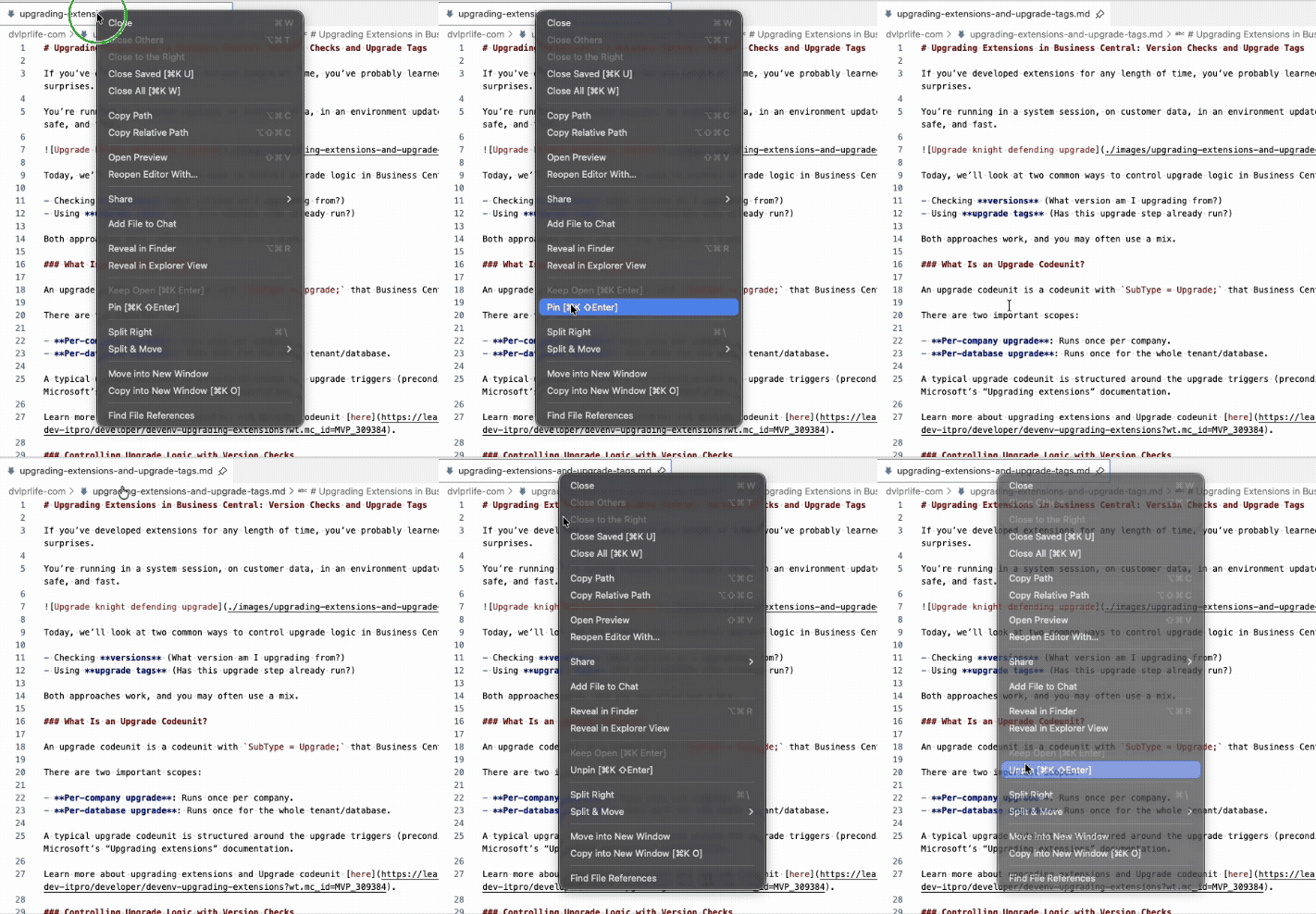
How to Pin a Tab
- Right‑click the tab you want to keep open
- Select Pin
- Or use the keyboard shortcut
Ctrl+K Shift+Enteron Windows orCmd+K Shift+Enteron Mac on the opened tab
Pinned tabs shift to the left and display a small pin icon so you can spot them instantly.
How to Unpin a Tab
- Right‑click the pinned tab
- Select Unpin
- Or use the keyboard shortcut
Ctrl+K Shift+Enteron Windows orCmd+K Shift+Enteron Mac on the opened tab
Why It Helps
This simple feature keeps your workspace organized and reduces the mental overhead of hunting for files you didn’t mean to close.
It’s one of those small productivity boosts that adds up over time.
Got a favorite shortcut or workflow tweak? Share it in the comments and subscribe to dvlprlife.com for more Quick Tips like this one!