
Welcome to Quick Tips — a fast, focused series designed to help you work smarter.
Each post will give you one practical insight you can apply immediately, whether you’re coding, configuring your tools, or improving your workflow.
Here’s today’s Quick Tip:
Outline View = A Map of Your File
VS Code’s Outline View shows a structured list of symbols in the active file (classes, methods, variables, regions, headings, etc.). Think of it as a mini “table of contents” that updates as you switch files.
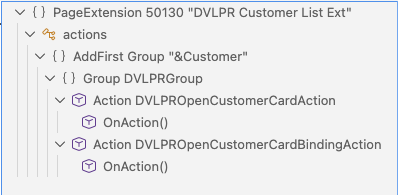
It’s especially handy when you’re in a large file and want to jump to the right spot without scrolling or searching.
Even better: the Outline is powered by your language/extension support. So in Markdown you’ll see headings, and in code you’ll see real symbols (types, methods, fields, etc.).
How to Open the Outline View
- Open Explorer (left sidebar) and find Outline below the file tree.
- Command Palette: run
View: Open View...and choose Outline. - Focus it quickly: run
View: Command Palette: Explorer: Focus on Outline View.
How to Move Outline to the Secondary Sidebar
If you want to keep the file map visible while you work (and keep Explorer/Search open), move Outline to the secondary sidebar:
- Display the secondary sidebar by clicking the icon on the far right of the sidebar or
View > Appearance > Show Secondary Side Bar. - Drag the Outline view by its title and drop it into the secondary sidebar.
Now you can keep your primary sidebar for Explorer/Search and keep Outline visible on the other side.
How to Navigate Code with Outline
- Click any symbol to jump to it instantly.
- Expand/Collapse sections to reduce noise in big files.
- Filter with the search box in Outline to quickly narrow to a method/class name.
- Follow Cursor (from the Outline’s “…” menu) highlights where you are as you move through the file.
Customize the Outline View
Open Settings and search for outline. to tweak how the Outline looks and behaves (icons, following the cursor, sorting, and more).
For example, outline.collapseItems controls whether symbols are expanded or collapsed when the view first loads:
{
	"outline.collapseItems": "alwaysCollapse"
}

Additional settings values include:
outline.icons— Render Outline elements with icons.outline.problems.enabled— Show errors and warnings on Outline elements.
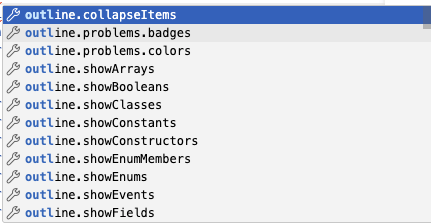
Explore different values, use the Settings UI for Outline: Collapse Items and pick the option that matches your workflow.
Why it Helps
- Faster navigation in large files without losing context.
- Encourages working at the “structure” level (types/methods/sections), not just text search.
- Pairs perfectly with the secondary sidebar so you can reference it constantly.
Learn more about the Outline View in VS Code.
Gotcha
The Outline View depends on your language support. If you don’t see useful symbols, you may need a better language extension. For AL specifically, the AZ AL Dev Tools/AL Code Outline extension can provide richer outlining.
Got a favorite shortcut or workflow tweak? Share it in the comments and subscribe to dvlprlife.com for more Quick Tips like this one!