
Welcome to Quick Tips — a fast, focused series designed to help you work smarter.
Each post will give you one practical insight you can apply immediately, whether you’re coding, configuring your tools, or improving your workflow.
Here’s today’s Quick Tip:
Look Up Existing Shortcuts
VS Code has an abundant number of keyboard shortcuts built in, and every extension you install can add more. The Keyboard Shortcuts editor is the fastest way to find what’s already mapped.
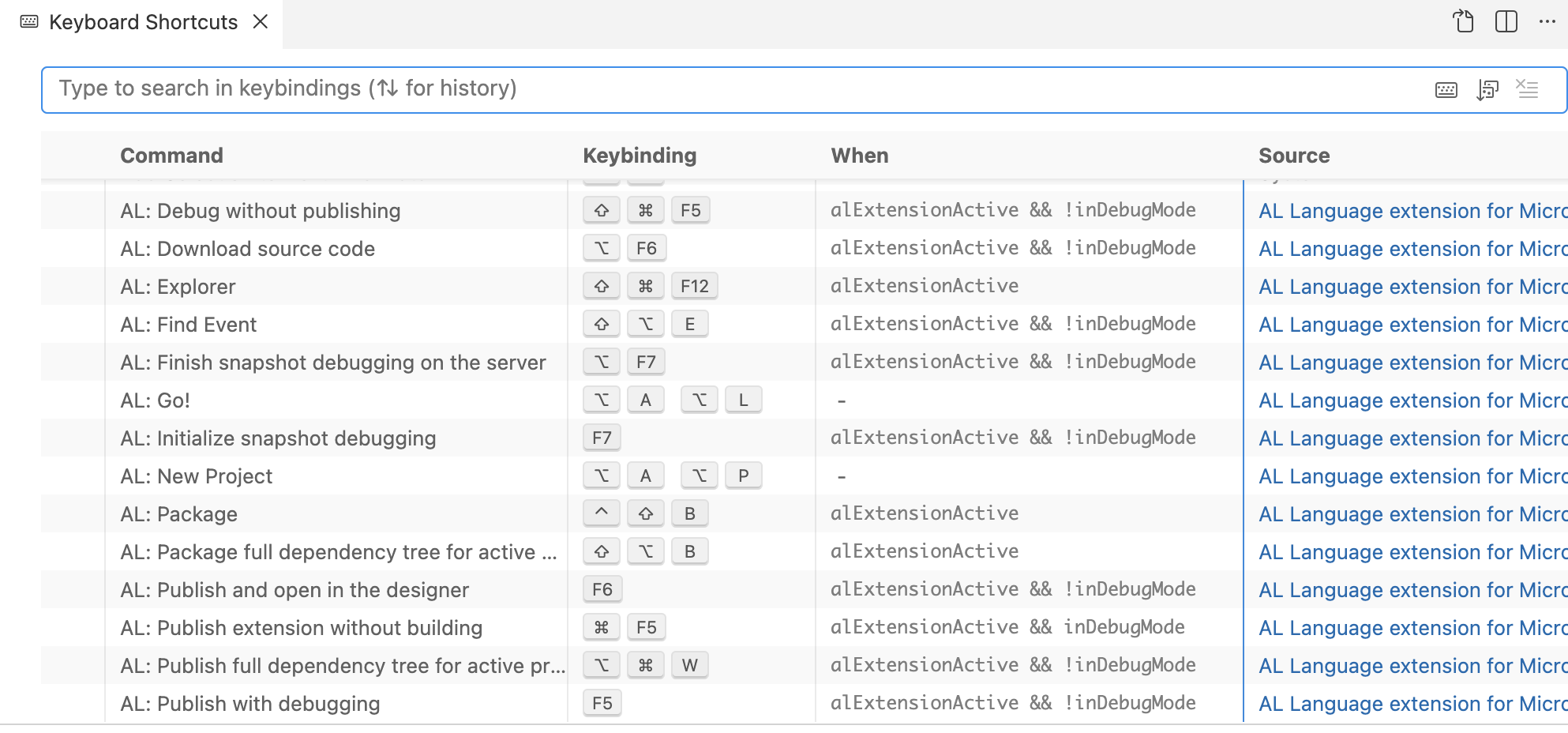
- Open it with
Cmd+K Cmd+Son Mac orCtrl+K Ctrl+Son Windows/Linux - Type a command name (like “toggle sidebar”) to find its shortcut
- Type a key combination to see what’s bound to it
- Right-click any entry and select Show Same Keybindings to see if other commands share the same shortcut
Understanding the Columns
The Keyboard Shortcuts editor displays each binding as a row with these columns:
- Command — The human-readable name of the action (e.g., “Toggle Terminal”).
- Keybinding — The key combination currently assigned. If blank, the command has no shortcut yet.
- When — An optional context condition that must be true for the shortcut to fire (e.g.,
editorTextFocus). - Source — Where the binding came from: Default, User (your customizations), or Extension.
These columns make it easy to scan for conflicts, spot which shortcuts you’ve overridden, and see exactly when a binding is active.
Create Your Own Shortcuts
You can add or change a shortcut directly from the Keyboard Shortcuts editor:
- Search for the command you want to bind.
- Click the pencil icon (or double-click the entry).
- Press the key combination you want and hit
Enter.
For more control, open keybindings.json by clicking the Open Keyboard Shortcuts (JSON) button in the top-right corner of the editor. This lets you define rules with optional when clauses to scope shortcuts to specific contexts:
{
  "key": "ctrl+shift+t",
  "command": "workbench.action.terminal.toggleTerminal",
  "when": "editorTextFocus"
}
Detect and Resolve Conflicts
When you install several extensions, it’s common for two or more to claim the same key combination. When that happens, only one command wins and the others silently stop working.
To spot conflicts, right-click any shortcut in the Keyboard Shortcuts editor and select Show Same Keybindings. You can also run the command Developer: Toggle Keyboard Shortcuts Troubleshooting from the Command Palette to log exactly which rule fires when you press a key.
Why Customize Your Shortcuts
- Resolve extension conflicts — Two extensions fighting over the same keys? Reassign one so both work.
- Match your muscle memory — Coming from Vim, Sublime, or another editor? Remap keys to feel at home (or install a Keymap extension).
- Add shortcuts to unbound commands — Many useful commands don’t have a default shortcut. Give them one.
- Scope shortcuts to specific contexts — Use
whenclauses to make a shortcut active only in the terminal, a specific language, or during debugging. - Improve ergonomics — Replace awkward three-key combos with something that’s easier on your hands.
Learn more about keyboard shortcuts in VS Code.
Got a favorite shortcut or workflow tweak? Share it in the comments and subscribe to dvlprlife.com for more Quick Tips like this one!