
What Is “Orphaned Extension Data”?
In Business Central, when uninstalling an extension, the person performing the uninstall can choose to preserve its data. That’s intentional: it allows you to reinstall the extension later without losing data.
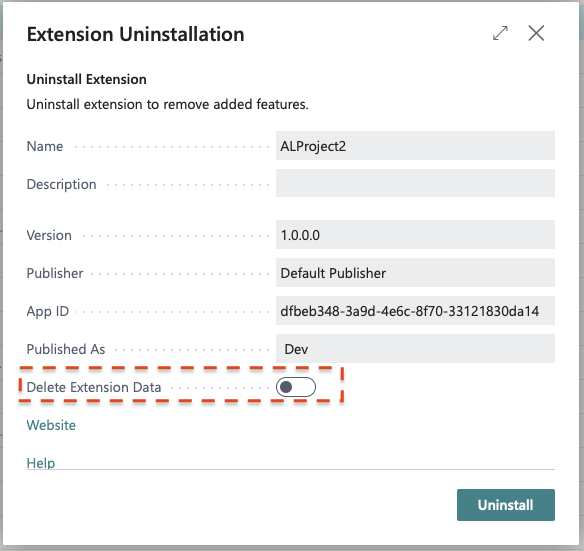
The downside is that you can end up with data for an extension that is no longer published. That leftover content is what people generally mean by orphaned extension data.
Over time—especially in environments that frequently cycle apps—this can add up and impact both storage and performance. Highlighting the importance of cleaning orphaned data helps administrators understand its impact on system health and encourages proactive maintenance.
The Feature: Delete Orphaned Extension Data
In Dynamics 365 Business Central 2023 release wave 2, Microsoft introduced a built-in way to clean this up: the Delete Orphaned Extension Data page. This feature targets only extensions that are not currently installed but still have data.
It lets an admin:
- See which uninstalled extensions still have data in the tenant.
- Select one or more of those extensions.
- Permanently delete the leftover data for those uninstalled extensions.
Read more about deleting orphaned extension data here.
Why You Should Care (Performance + Capacity)
Even if the extension is gone, the data it created can still have a cost:
- Storage/capacity: orphaned data takes space until you remove it.
- Table extension overhead: table-extension fields are stored by the platform in companion tables. Leaving old extension data behind can increase row size and overhead.
- Upgrades and maintenance: less “dead” data usually means faster maintenance operations and fewer surprises.
Microsoft’s performance guidance is very consistent on this theme: keep the database lean.
How to Use It (In the Client)
You can run the cleanup directly from the Business Central client:
- Use Tell me and search for Delete Orphaned Extension Data.
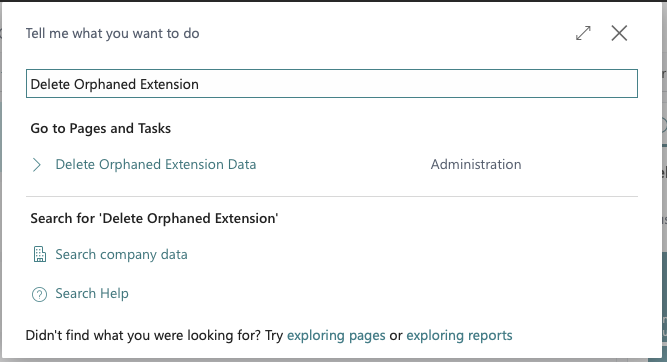
- Open the page.
- Review the list of uninstalled extensions that still have data.
- Select the extension(s) you want to clean up.
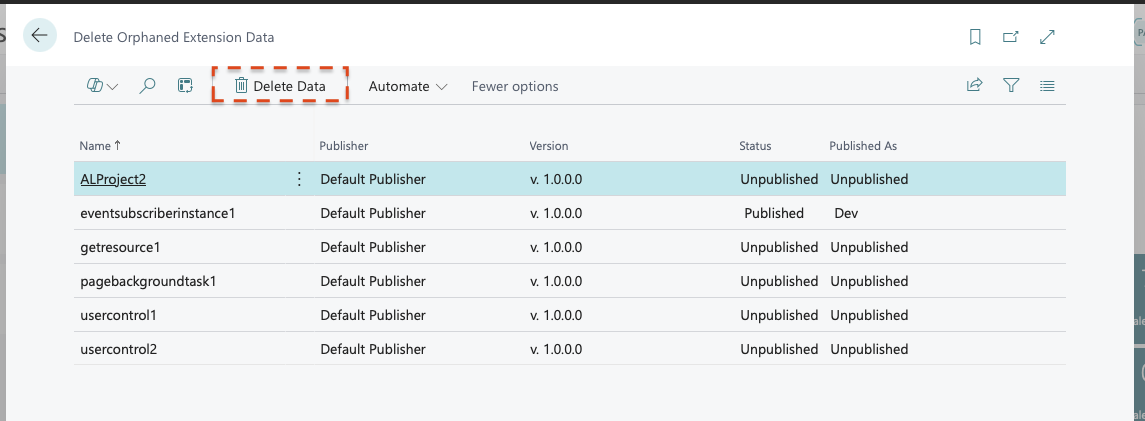
- Choose Delete data (or the equivalent action).

If you’re looking for where extension install/uninstall is managed, that’s typically done from Extension Management.
Read more on Extension Management here.
What Actually Gets Deleted?
At a high level, this cleanup removes data that belongs to the selected uninstalled extension(s), including:
- Data in extension-owned tables
- Data stored for table extensions (platform companion table data)
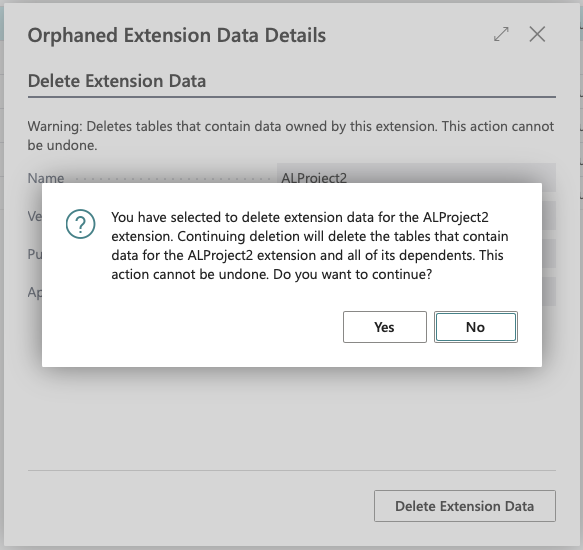
Deleting orphan data is a destructive operation. Once you delete extension data, it’s not something you can “undo” from inside Business Central. Always test in a sandbox first to build confidence in safe execution, as this reassures admins about data safety.
If you’re unsure whether it’s safe, the best approach is:
- Validate the extension is not needed
- Confirm you have a backup/restore option
- Test the cleanup in a Sandbox first
Permissions / Who Should Do This
Deleting Orphan Extension Data is an admin maintenance task and typically requires extension-management/admin permissions in the tenant.
If a user can’t see the page or actions, that’s usually the first thing to check.
Wrapping Up
The Delete Orphaned Extension Data feature is a small admin tool with a significant long-term payoff, empowering you to optimize capacity and improve performance by removing leftover extension data.
Note: The information in this article is for informational and demonstration purposes only. This content was written with reference to Microsoft Dynamics 365 Business Central 2023 release wave 2 Online and later. Always test cleanup in a sandbox first and ensure you have a recovery path before deleting data in production.