
If you’ve developed extensions for any length of time, you’ve probably learned the hard way that “upgrade code” is not where you want surprises.
You’re running in a system session, on customer data, in an environment update window, and whatever you do needs to be repeatable, safe, and fast.
Today, we’ll look at two common ways to control upgrade logic in Business Central:
- Checking versions (What version am I upgrading from?)
- Using upgrade tags (Has this upgrade step already run?)
Both approaches work, and you may often use a mix.
What Is an Upgrade Codeunit?
An upgrade codeunit is a codeunit with SubType = Upgrade; that Business Central executes as part of an extension upgrade.
There are two important scopes:
- Per-company upgrade: Runs once per company.
- Per-database upgrade: Runs once for the whole tenant/database.
A typical upgrade codeunit is structured around the upgrade triggers (preconditions → upgrade → validation). You’ll see these in Microsoft’s “Upgrading extensions” documentation.
Learn more about upgrading extensions and Upgrade codeunit here.
Controlling Upgrade Logic with Version Checks
The “classic” approach is to gate each upgrade step by checking the version you’re upgrading from.
In upgrade code, you can read version information using NavApp.GetCurrentModuleInfo and then compare against ModuleInfo.DataVersion() (commonly interpreted as the data version you’re upgrading from).
Example (simplified):
codeunit 50160 "DVLPR Upgrade"
{
    SubType = Upgrade;

    trigger OnUpgradePerCompany()
    var
        CurrentModuleInfo: ModuleInfo;
    begin
        NavApp.GetCurrentModuleInfo(CurrentModuleInfo);

        // Only run this step when upgrading from versions older than 2.0.0.0
        if CurrentModuleInfo.DataVersion() < Version.Create(2, 0, 0, 0) then
            UpgradeStep_200();
    end;

    local procedure UpgradeStep_200()
    begin
        // data transformation, backfill, etc.
    end;
}
This pattern is straightforward and works well when:
- You have a small number of versions to support.
- Each upgrade step cleanly maps to a specific “from version” range.
Where it gets messy is when you’ve shipped many versions, had hotfixes, or need to make upgrade code resilient against partial runs.
The Problem with Pure Version Checks
Version checks alone don’t tell you whether the step has already executed successfully.
For example:
- A tenant may have attempted an update, failed halfway through, and then retried.
- You may ship a fix that needs to run even if the version comparison still matches.
- You may be backporting an upgrade step into a servicing build.
In those cases, “Did we already run this exact step?” is a better question than, “What version are we upgrading from?”
Upgrade Tags: A Reliable Way to Make Upgrade Steps Idempotent
Upgrade tags are essentially a durable marker that says: “This specific upgrade step has been completed.”
Business Central provides the System.Upgrade codeunit “Upgrade Tag” (ID 9999) for this.
If you ever need to see what tags currently exist in an environment, you can open page 9985 Upgrade Tags to view the stored upgrade tags.
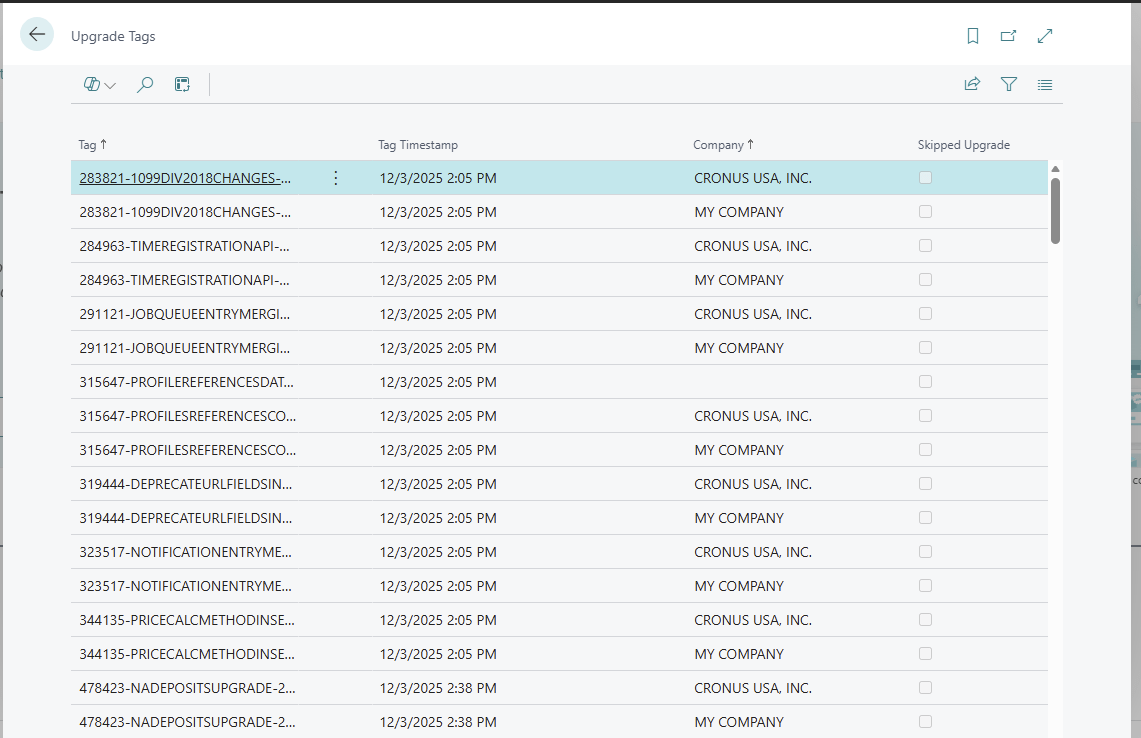
Microsoft Learn reference: Codeunit “Upgrade Tag”
The two methods you’ll use most often are:
HasUpgradeTag(Tag: Code[250]): BooleanSetUpgradeTag(NewTag: Code[250])
(There are also database-scoped methods like HasDatabaseUpgradeTag and SetDatabaseUpgradeTag when you need a tag that applies at the database level.)
Example: Using HasUpgradeTag / SetUpgradeTag in an Upgrade Codeunit
Here’s the basic pattern:
- Check if the tag exists.
- If it does, exit (step already completed).
- Run the upgrade logic.
- Set the tag.
codeunit 50161 "DVLPR Upgrade With Tags"
{
    SubType = Upgrade;

    trigger OnUpgradePerCompany()
    var
        UpgradeTag: Codeunit "Upgrade Tag";
        Tag: Code[250];
    begin
        Tag := 'DVLPR-50161-PerformUpgradeSomething-20260105';
        if UpgradeTag.HasUpgradeTag(Tag) then
            exit;

        PerformUpgradeSomething();

        UpgradeTag.SetUpgradeTag(Tag);
    end;

    local procedure PerformUpgradeSomething()
    begin
        // data transformation, backfill, etc.
    end;
}
A few notes:
- The tag format is up to you, but make it unique and traceable. A common pattern is
CompanyPrefix-WorkItem-Description-YYYYMMDD. - The critical part is when you set the tag—set it only after the step is complete.
Version Checks + Upgrade Tags Together
In many real upgrades, the best solution is a hybrid:
- Use version checks to decide whether a step is relevant.
- Use an upgrade tag to ensure the step runs once, at most.
Example:
trigger OnUpgradePerCompany()
var
    CurrentModuleInfo: ModuleInfo;
    UpgradeTag: Codeunit "Upgrade Tag";
    Tag: Code[250];
begin
    NavApp.GetCurrentModuleInfo(CurrentModuleInfo);

    if CurrentModuleInfo.DataVersion() >= Version.Create(2, 0, 0, 0) then
        exit;

    Tag := 'DVLPR-200-UpgradeStep-20260105';
    if UpgradeTag.HasUpgradeTag(Tag) then
        exit;

    UpgradeStep_200();
    UpgradeTag.SetUpgradeTag(Tag);
end;
A Practical Reminder: Order Isn’t Guaranteed Across Upgrade Codeunits
One important design point from the platform: If you have multiple upgrade codeunits, the execution order between different upgrade codeunits is not something you should rely on.
Keep upgrade steps independent, or consolidate logically dependent work into a single upgrade codeunit.
Wrapping Up
You can control upgrade code in Business Central by checking versions, but upgrade tags add a second layer of safety: They let you make individual upgrade steps idempotent and resilient across retries and long-lived version histories.
If you’re building an extension that you expect to ship and maintain for years, upgrade tags are one of the best tools you can adopt early on.
Learn more:
- Upgrade tags (
HasUpgradeTag,SetUpgradeTag, and more) - Upgrading extensions (upgrade triggers, version checks, best practices)
SubType = Upgradeproperty reference
Note: The code and information discussed in this article are for informational and demonstration purposes only. Always test upgrade code in a sandbox and make sure it behaves correctly on a copy of production data. This content was written referencing Microsoft Dynamics 365 Business Central 2025 Wave 2 online.
1 ping
[…] See: Upgrading Extensions in Business Central: Version Checks and Upgrade Tags […]