
Many of the Business Central admins I’ve talked to have the same story about posting periods. Month-end comes around, someone forgets to update the Allow Posting From and Allow Posting To dates in General Ledger Setup, and the next morning a user either can’t post anything or—worse—slips a transaction into last month without realizing it. Don’t set posting dates at all and you’ll end up with transactions scattered across periods that should have been closed weeks ago.
It’s one of those small chores that shouldn’t cause problems, but it does—because it depends on a person remembering to do it at exactly the right time.
With 2026 Wave 1, Microsoft added something that should have existed years ago: you can now enter a date formula instead of a hard-coded date, and Business Central figures out the posting window on its own. Set it once, walk away, and let the system handle the rest.
What’s New?
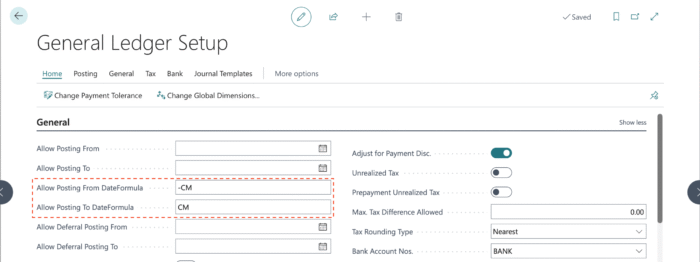
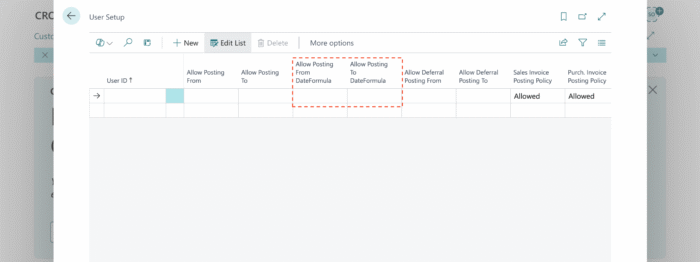
Business Central now has two additional fields sitting alongside the classic fixed-date fields you’re used to:
- Allow Posting From Date Formula
- Allow Posting To Date Formula

If you’ve used date formulas anywhere else in Business Central—payment terms, reminder levels, recurring journals—this is the same syntax. The difference is where it’s applied: instead of calculating a due date or a reminder date, Business Central uses the formula to figure out the boundaries of the posting window based on the work date.
You’ll find the new fields on:
-
General Ledger Setup
-
User Setup
-
General Journal Templates
Why It Matters
The obvious win is less busywork. No more calendar reminders, or system enhancements to go update GL Setup on the first of the month. But there’s a bit more to it:
- It’s one less thing to forget. Period-close checklists are long enough already. Removing a manual step means one fewer thing that can go wrong when someone’s out sick or on vacation.
- Users stop getting blocked for no good reason. We’ve all gotten that call: “I can’t post my invoice.” Nine times out of ten it’s because the posting dates haven’t been rolled forward yet. Date formulas eliminate that entirely.
- You can get creative with windows. Rolling 30-day windows, current-month-only, even a “previous month only” window for late close scenarios—the formula approach covers a lot of ground.
How It Works
Each time Business Central validates a posting date, it takes the formula and calculates it against today’s date. The result is the allowed posting window for that moment.
Here are a few examples to make it concrete:
| Scenario | From Formula | To Formula | Today’s Date | Allowed Window |
|---|---|---|---|---|
| Current month only | -CM |
CM |
Mar 17, 2026 | Mar 1 – Mar 31 |
| Rolling 30-day window | -30D |
0D |
Mar 17, 2026 | Feb 15 – Mar 17 |
| One month back, one week forward | -1M |
1W |
Mar 17, 2026 | Feb 17 – Mar 24 |
| Previous month close | -1M-CM |
-CM-1D |
Mar 17, 2026 | Feb 1 – Feb 28 |
| Today only | 0D |
0D |
Mar 17, 2026 | Mar 17 – Mar 17 |
The “current month only” scenario (-CM to CM) is probably the most common one I’d expect to see in the wild. On any given day, it opens the window from the first day of the month through the last day of the month—no manual intervention needed when the calendar flips.
If date formula syntax is new to you, the short version:
D= Day(s),W= Week(s),M= Month(s),Q= Quarter(s),Y= Year(s)C= Current (soCM= end of current month,CW= end of current week)- A leading
-goes backward (e.g.,-CM= beginning of current month)
Priority of Posting Date Checks
Nothing changed here in terms of the evaluation order—Business Central still checks in the same sequence it always has:
- User Setup – If posting date restrictions are defined for the specific user, those win.
- General Ledger Setup – Kicks in when User Setup doesn’t have anything defined.
- General Journal Template – Only applies when you’ve turned on the Journal Templ. Name Mandatory toggle on the General Posting Setup page.
The only thing that’s different now is that any of those levels can use a date formula instead of a fixed date.
Mixing Fixed Dates and Date Formulas
You don’t have to pick one approach for everything. Each boundary—From and To—is independent:
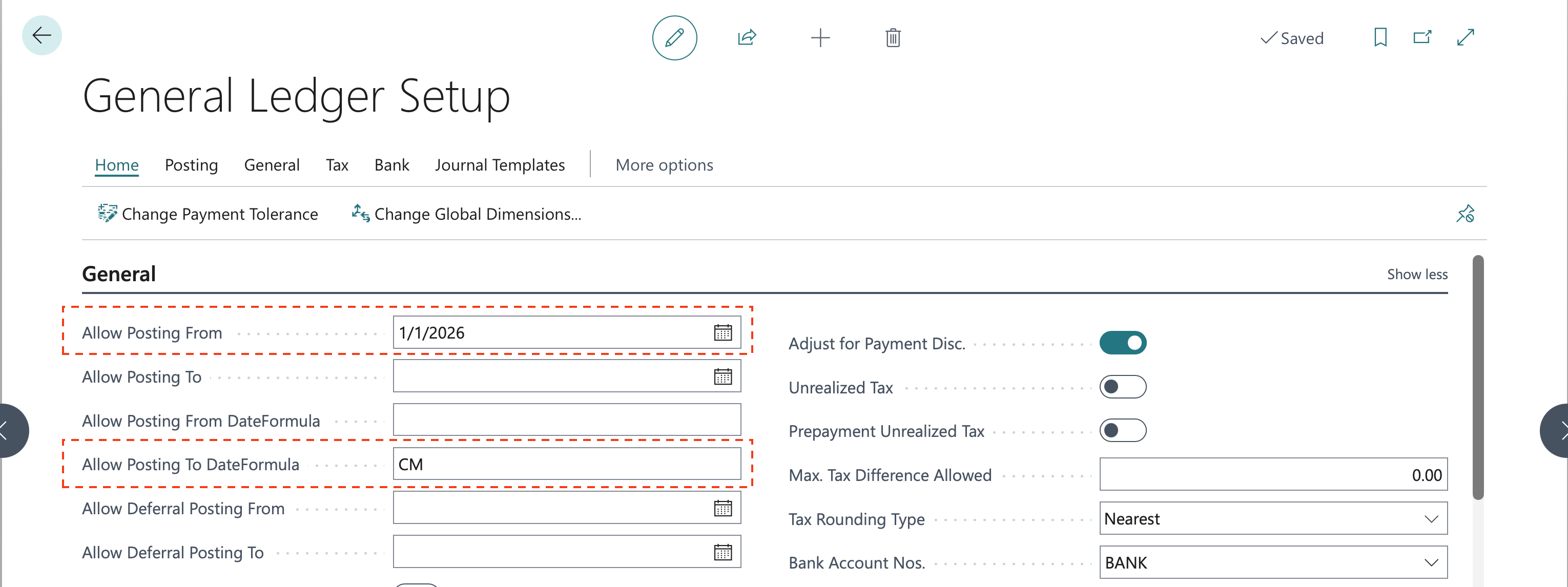
- Enter a formula and the corresponding fixed date clears out.
- Enter a fixed date and the corresponding formula clears out.
- Mix them: a hard-coded From date with a formula-based To, or the other way around.
I can see this being handy during year-end, for example. You might lock the From date to January 1st of the new fiscal year while letting the To side roll forward automatically with a 0D or CM formula.
This is one of those features that won’t make any headlines, but it’ll save a lot of small headaches. If you’ve been manually updating posting dates every month (or fielding calls from users who can’t post because the dates are stale), give the new Allow Posting From Date Formula and Allow Posting To Date Formula fields a try. For most shops, -CM to CM or -30D to 0D will cover what you need, and you can stop thinking about it.
Note: The information discussed in this article is for informational and demonstration purposes only. This content was written referencing Microsoft Dynamics 365 Business Central 2026 Wave 1 online. Always test in a sandbox environment first before making changes to production posting period settings.