Weekly Review: Business Central AL Development – January 11-17, 2026

Highlighting posts and resources from the Business Central development community — January 11–17, 2026

Looking to stay current with Dynamics 365 Business Central AL development? Here’s a curated list of recent blog posts, tutorials, and community resources from the past week.


Recent Posts (January 11–17, 2026)

➡️ 1. Streamline Your AL Development with Global NuGet Symbols

📇 Author: Marcel Chabot
🗓️ Date: January 16, 2026
🌎 Link: aardvarklabs.blog
📝 Summary: Shows how to download Business Central symbols from global NuGet sources when you can’t (or don’t want to) connect to a target environment yet. Includes the key VS Code settings (like al.symbolsCountryRegion) and points you to the new AL command for downloading symbols globally.


➡️ 2. Dynamics 365 Business Central: How to Get the Month Name/Text from a Date (Two Ways)

📇 Author: Yun Zhu
🗓️ Date: January 16, 2026
🌎 Link: yzhums.com
📝 Summary: Two practical approaches for turning a Date into a friendly month name in AL. Covers both formatting patterns and the Date virtual table option, with small code snippets you can drop into an extension.


➡️ 3. Connect Any Agent to Business Central

📇 Author: Dmitry Katson
🗓️ Date: January 12, 2026
🌎 Link: katson.com
📝 Summary: Shows a practical, cross-platform way to connect an AI agent to Business Central using an MCP proxy workflow. Helpful if you’re working on macOS/Linux or want a repeatable “one command” setup for connecting tools and agents to a BC environment.


➡️ 4. Do You Have Applications Connecting to an Azure Storage Account? Be Sure to Use TLS 1.2 or Later

📇 Author: Stefano Demiliani
🗓️ Date: January 14, 2026
🌎 Link: demiliani.com
📝 Summary: Important security heads-up for BC developers using Azure Blob Storage: On February 3, 2026, Azure Blob Storage will require TLS 1.2 or later. If your Business Central integrations connect to Azure Storage, you’ll want to verify both the storage account settings and the TLS capabilities of the apps calling into it.


➡️ 5. Do You Really Need Plan Mode If You Already Use Agents Well?

📇 Author: Steven Renders
🗓️ Date: January 13, 2026
🌎 Link: thinkaboutit.be
📝 Summary: A thoughtful take on whether GitHub Copilot Plan mode is actually “new capability” versus a stronger guardrail around work sequencing. Frames Plan mode as an opinionated workflow that makes intent and planning an explicit artifact before implementation. This is useful when you want to avoid accidentally drifting into code changes.


➡️ 6. Check AppSource App Update History

📇 Author: Teddy Herryanto
🗓️ Date: January 16, 2026
🌎 Link: thatnavguy.com
📝 Summary: Quick reminder to check an AppSource app’s “last updated” date before installing. With Business Central changing every release, stale apps are higher risk for bugs and compatibility issues, so update history is a fast way to spot potential trouble early.


➡️ 7. SQL Support in Business Central, Yes, Also in the Cloud

📇 Author: Erik Hougaard
🗓️ Date: January 12, 2026
🌎 Link: hougaard.com
📝 Summary: A quick experiment-driven post (with a video) showing a proof-of-concept for using SQL “inside” cloud Business Central. Interesting if you’re exploring what’s possible (and what isn’t) when you need ad-hoc querying or data-shaping beyond standard AL patterns.


Community Resources

Official Resources

GitHub Repositories

  • microsoft/BCApps – Repository for collaboration on Microsoft Dynamics 365 Business Central applications.
  • microsoft/BCTech – Business Central technology samples.
  • microsoft/ALAppExtensions – Repository for collaboration on Microsoft AL application add-on and localization extensions for Microsoft Dynamics 365 Business Central.
  • microsoft/AL – Home of the Dynamics 365 Business Central AL Language extension for Visual Studio Code.
  • StefanMaron/MSDyn365BC.Code.History – Contains the Microsoft Business Central Code. Updated each month.

Follow on Social Media


Stay Connected

The Business Central AL development community stays active with valuable content on AL development, upgrades, integrations, and tooling improvements. Following #MSDyn365BC and #BusinessCentral on Twitter/X is a great way to catch new posts as they’re published.


Note: This review is compiled from publicly available blog posts and community resources. Links to external blog posts are provided for your information only and do not constitute endorsement or validation of their content. Publication information and availability are subject to change. Always verify information against official documentation for production use.

Permanent link to this article: https://www.dvlprlife.com/2026/01/weekly-review-business-central-al-development-january-11-17-2026/

Quick Tips: Use the Outline View in Visual Studio Code

Welcome to Quick Tips — a fast, focused series designed to help you work smarter.

Each post will give you one practical insight you can apply immediately, whether you’re coding, configuring your tools, or improving your workflow.

Here’s today’s Quick Tip:

Outline View = A Map of Your File

VS Code’s Outline View shows a structured list of symbols in the active file (classes, methods, variables, regions, headings, etc.). Think of it as a mini “table of contents” that updates as you switch files.

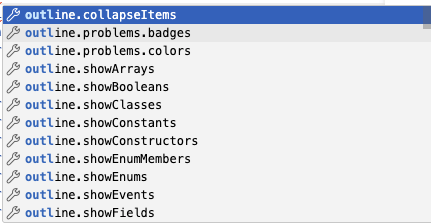
outline.collapseItems options

It’s especially handy when you’re in a large file and want to jump to the right spot without scrolling or searching.

Even better: the Outline is powered by your language/extension support. So in Markdown you’ll see headings, and in code you’ll see real symbols (types, methods, fields, etc.).

How to Open the Outline View

  • Open Explorer (left sidebar) and find Outline below the file tree.
  • Command Palette: run View: Open View... and choose Outline.
  • Focus it quickly: run View: Command Palette: Explorer: Focus on Outline View.

How to Move Outline to the Secondary Sidebar

If you want to keep the file map visible while you work (and keep Explorer/Search open), move Outline to the secondary sidebar:

  • Display the secondary sidebar by clicking the icon on the far right of the sidebar or View > Appearance > Show Secondary Side Bar.
  • Drag the Outline view by its title and drop it into the secondary sidebar.

Now you can keep your primary sidebar for Explorer/Search and keep Outline visible on the other side.

How to Navigate Code with Outline

  • Click any symbol to jump to it instantly.
  • Expand/Collapse sections to reduce noise in big files.
  • Filter with the search box in Outline to quickly narrow to a method/class name.
  • Follow Cursor (from the Outline’s “…” menu) highlights where you are as you move through the file.

Customize the Outline View

Open Settings and search for outline. to tweak how the Outline looks and behaves (icons, following the cursor, sorting, and more).

For example, outline.collapseItems controls whether symbols are expanded or collapsed when the view first loads:

{
	"outline.collapseItems": "alwaysCollapse"
}

outline.collapseItems options

Additional settings values include:

  • outline.icons — Render Outline elements with icons.
  • outline.problems.enabled — Show errors and warnings on Outline elements.

outline additional settings

Explore different values, use the Settings UI for Outline: Collapse Items and pick the option that matches your workflow.

Why it Helps

  • Faster navigation in large files without losing context.
  • Encourages working at the “structure” level (types/methods/sections), not just text search.
  • Pairs perfectly with the secondary sidebar so you can reference it constantly.

Learn more about the Outline View in VS Code.

Gotcha

The Outline View depends on your language support. If you don’t see useful symbols, you may need a better language extension. For AL specifically, the AZ AL Dev Tools/AL Code Outline extension can provide richer outlining.

Got a favorite shortcut or workflow tweak? Share it in the comments and subscribe to dvlprlife.com for more Quick Tips like this one!

Permanent link to this article: https://www.dvlprlife.com/2026/01/quick-tips-use-the-outline-view-in-vs-code/

AboutTitle and AboutText: Better Teaching Tips in Business Central

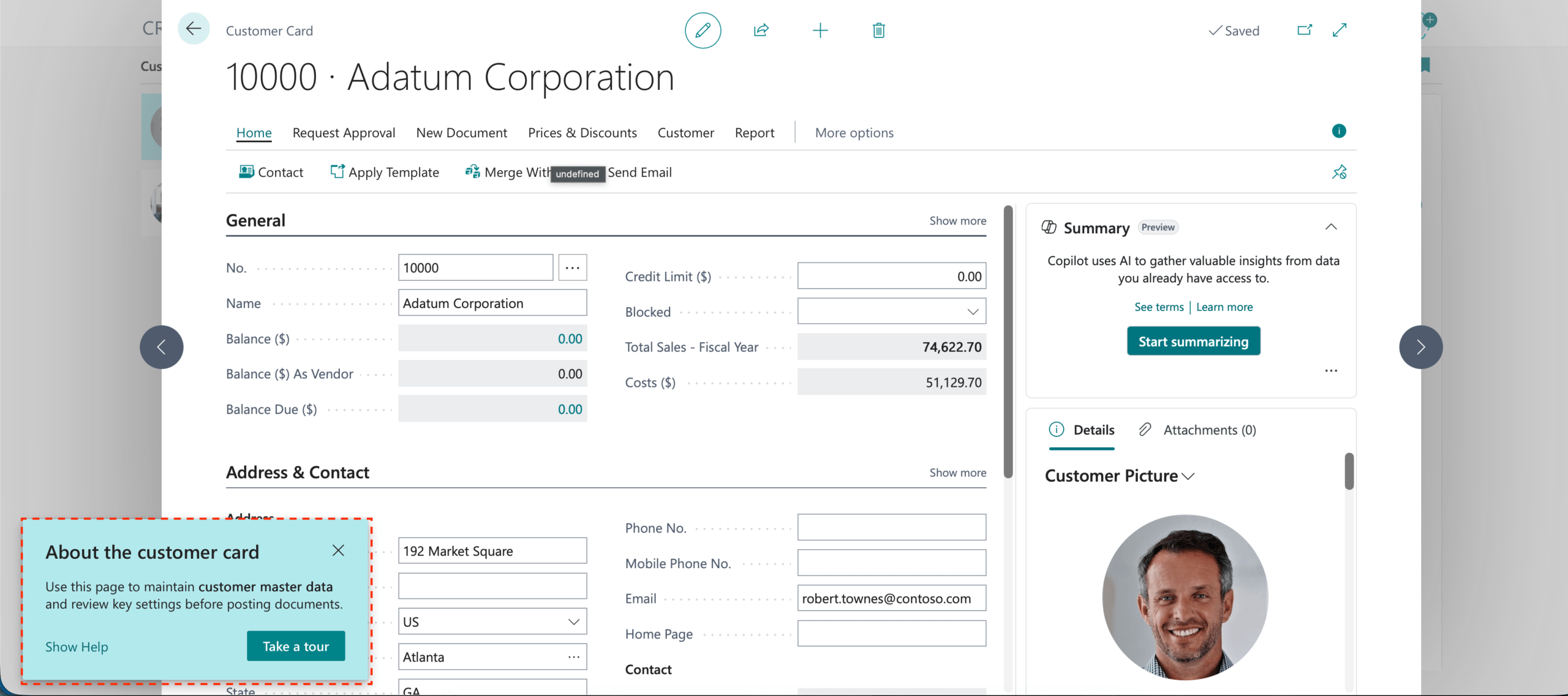
Teaching tips are one of those tiny user experience touches that can save you a lot of training time. In Business Central, the AboutTitle and AboutText properties let you add those “What is this?” callouts directly on pages, fields, actions, and more.

I like these properties because they scale well: You can put a small hint on a single field or provide a higher-level explanation for an entire page—without writing any code.

What Are AboutTitle and AboutText?

  • AboutTitle is the large header shown in the teaching tip.
  • AboutText is the body text shown under the title.

They’re most commonly used to:

  • Explain what a page is for (especially list pages that new users land on)
  • Add context to “mystery fields” (settings, posting options, toggles)
  • Clarify what an action will do before a user clicks it

Why You Should Care

  • Reduces “What does this do?” interruptions
  • Helps new users learn workflows in context
  • Makes customizations feel more “native” and self-documenting
  • Lets you improve user experience for customizations and extensions

How It Works (And When It Doesn’t)

You can set these properties at different levels (and each one creates a different “type” of teaching tip):

  • Page-level: on the page or pageextension
  • Control-level: on fields, groups, parts, actions/action groups, etc.

A few rules of thumb that matter in real projects:

  • You must set both AboutTitle and AboutText or the teaching tip won’t appear.
  • Teaching tips are a Web client feature—if the current client isn’t the Web client, these properties are ignored at runtime.
  • Not every page type will show a page-level teaching tip (for example, Role Centers and certain dialog-like pages don’t display them).
  • If a page runs in lookup mode, the teaching tip may not show automatically (but it can still be reached from the page caption).
  • Visibility matters: If a control ends up Visible = false, its teaching tip won’t show.
  • For fields, teaching tips show most reliably for repeater fields or fields in the page content area (not cues).
  • For actions, teaching tips are most reliable in primary action areas.
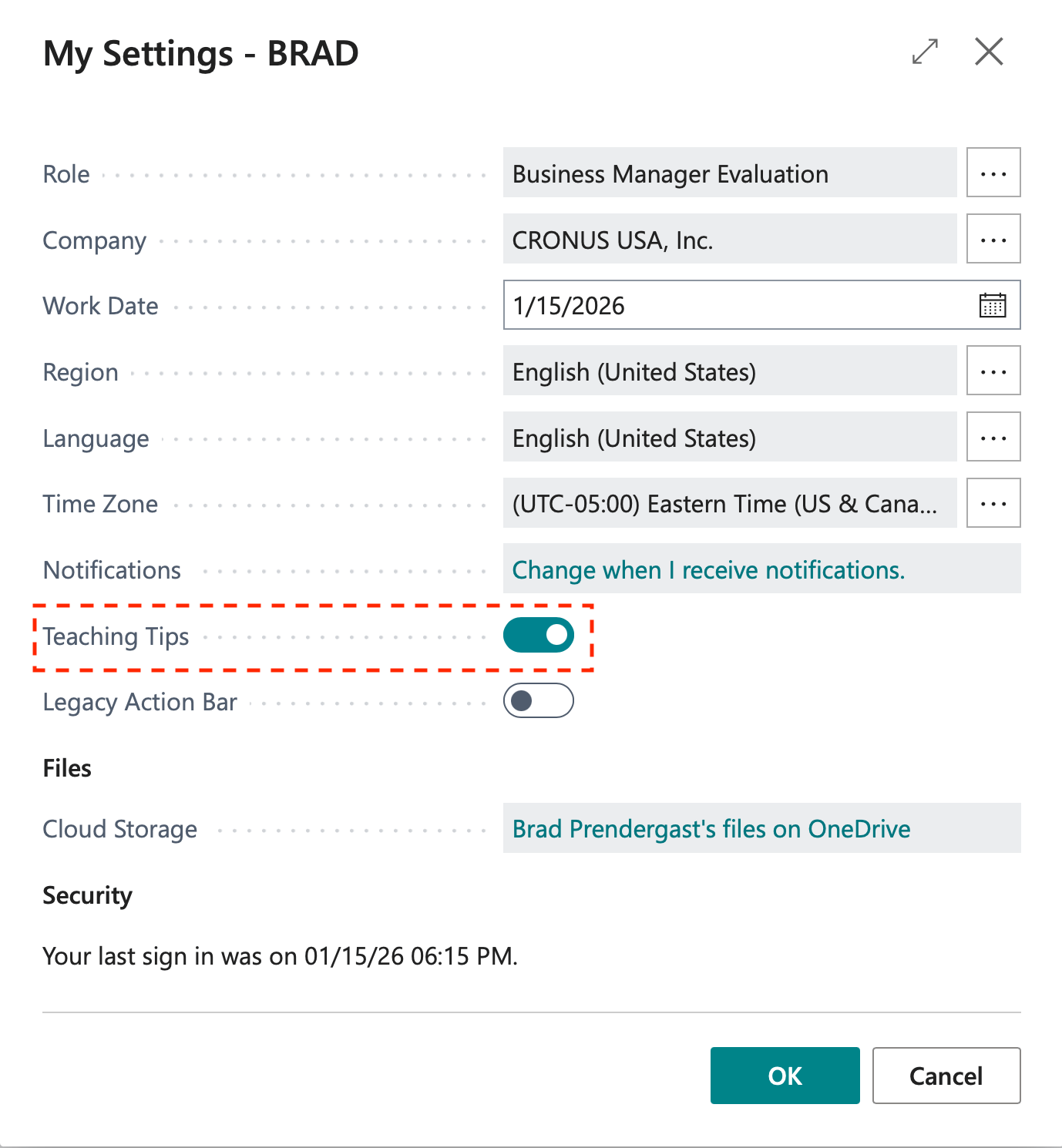
  • Teaching tips will not appear if the user has disabled them in their settings.

Also, where you place the property affects whether users will actually see it:

  • For fields, teaching tips are most useful in the content area or repeaters.
  • For actions, teaching tips are most reliable when the action appears in the primary action areas users interact with (not every action surface renders them).
  • For embedded parts, the tip effectively becomes part of the hosting page’s tour.

Example: Add Teaching Tips with a Page Extension

This example adds:

  • A page-level teaching tip
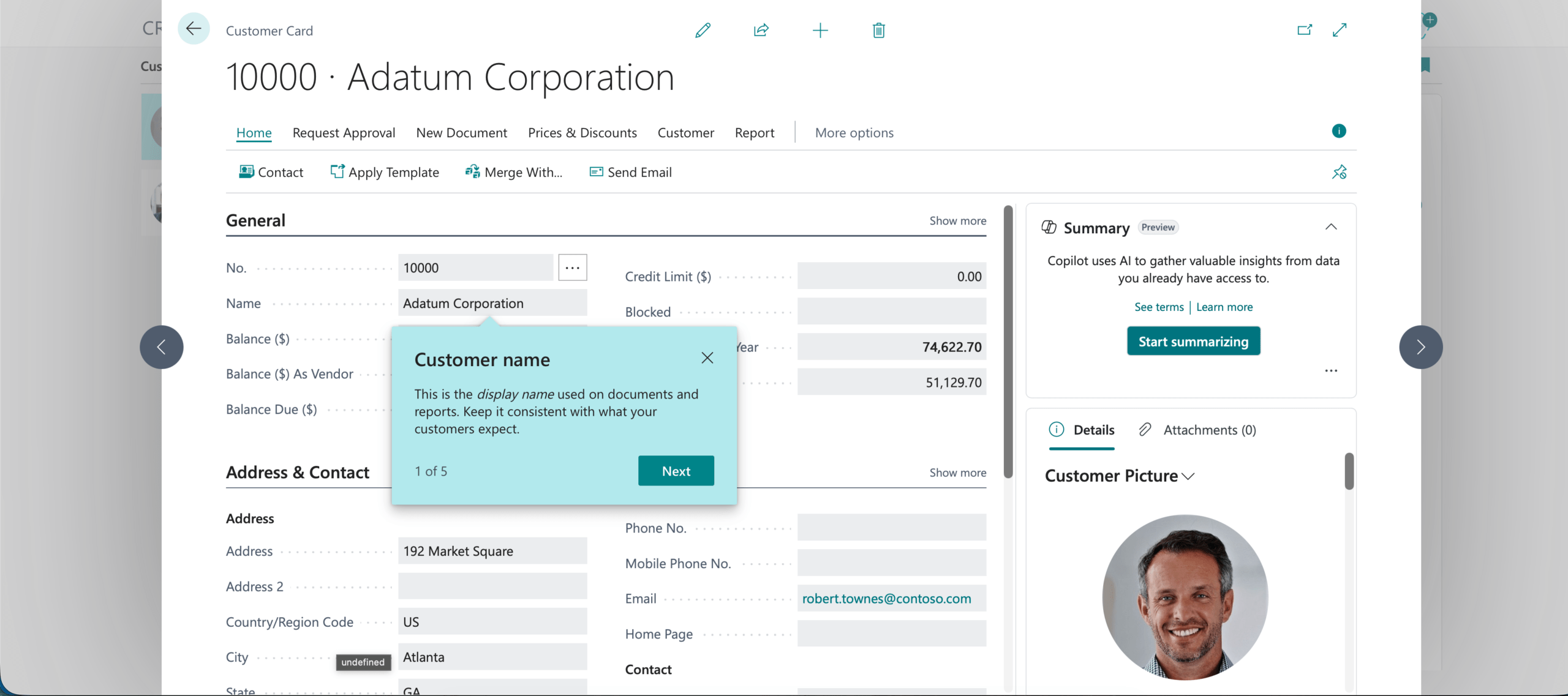
  • A field-level teaching tip
namespace dvlprlife.abouttitle1.abouttitle;

using Microsoft.Sales.Customer;

pageextension 50150 "Customer Card Tips" extends "Customer Card"
{
    AboutText = 'Use this page to maintain **customer master data** and review key settings before posting documents.';
    AboutTitle = 'About the customer card';

    layout
    {
        modify(Name)
        {
            AboutText = 'This is the *display name* used on documents and reports. Keep it consistent with what your customers expect.';
            AboutTitle = 'Customer name';
        }
    }
}


A couple of small notes:

  • AboutText supports simple rich-text formatting (for example **bold** and *italic*).
  • Keep the copy short—one or two sentences is usually plenty.

Example: Change (or Hide) an Existing Teaching Tip

If the base application already has a teaching tip, you can still adjust it in an extension.

  • To change the content: Set AboutTitle/AboutText on the same page/control.
  • To hide it entirely: Set the About properties to an empty string.
pageextension 50101 "Customer Card Tip Overrides" extends "Customer Card"
{
    layout
    {
        modify("Phone No.")
        {
            AboutTitle = '';
            AboutText = '';
        }
    }
}

Example: Add Teaching Tips to a Page and an Action

You can also add teaching tips directly in a page object and its actions.

namespace dvlprlife.abouttitle1.sample;
page 50151 "DVLPR Sample Size Card"
{
    AboutText = 'Create and maintain **sample size** records. Use Code to uniquely identify the record, Description to explain it, and Size to store a numeric value.';
    AboutTitle = 'Sample sizes';
    ApplicationArea = All;
    Caption = 'Sample Size Card';
    PageType = Card;
    SourceTable = "DVLPR Sample Size";
    UsageCategory = None;

    layout
    {
        area(Content)
        {
            group(General)
            {
                Caption = 'General';

                field(Code; Rec.Code)
                {
                    AboutText = 'A unique identifier for this sample size record.';
                    AboutTitle = 'Size code';
                }
                field(Description; Rec.Description)
                {
                    AboutText = 'A short description that explains what this code represents.';
                    AboutTitle = 'Description';
                }
                field(Size; Rec.Size)
                {
                    AboutText = 'A numeric value representing the size.';
                    AboutTitle = 'Size value';
                }
            }
        }
    }

    actions
    {
        area(Processing)
        {
            action(SampleAction)
            {
                Caption = 'Sample Action';
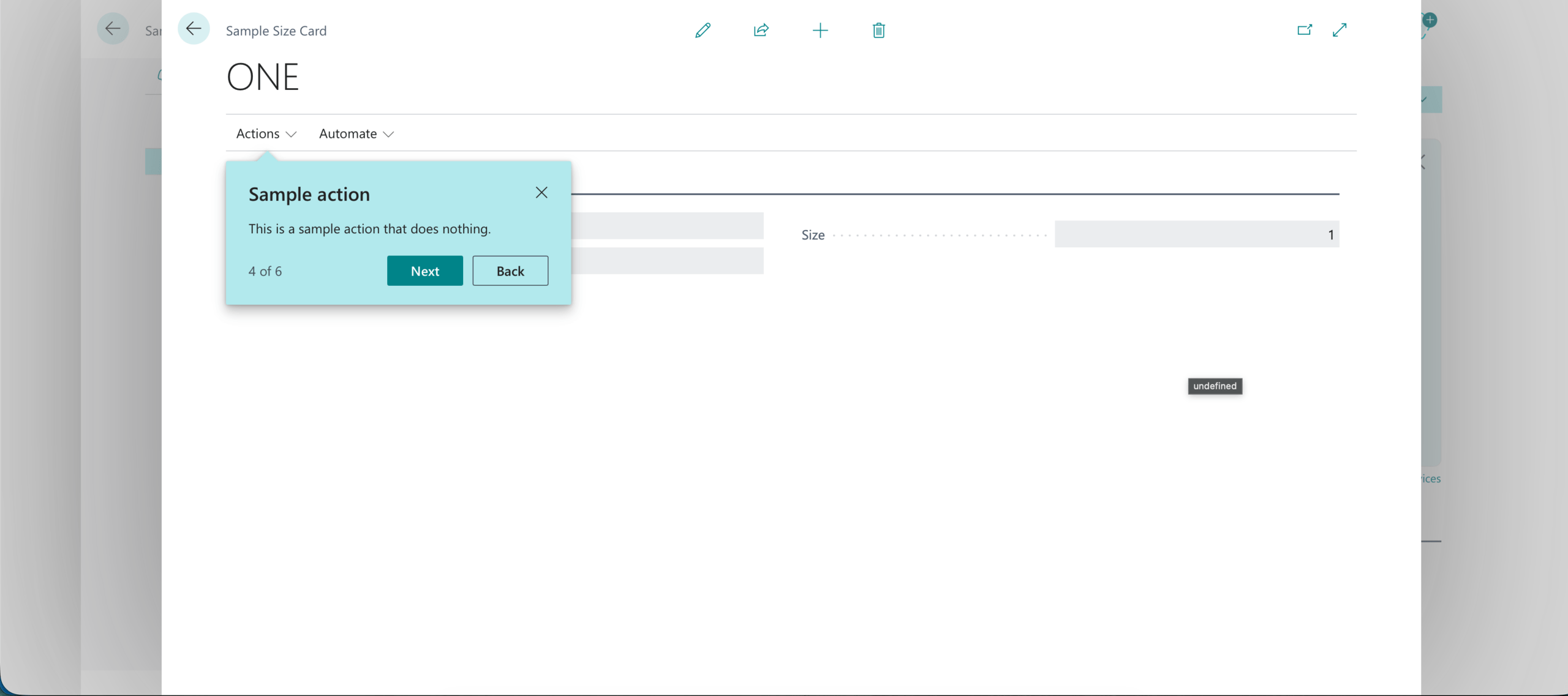
                AboutText = 'This is a sample action that does nothing.';
                AboutTitle = 'Sample action';

                trigger OnAction()
                begin
                    // No operation
                end;
            }
        }
    }
}

Tips for Writing Good Teaching Tips

  • Write for the moment the user is in: “What is this used for?” beats long process documentation.
  • Avoid repeating captions: The title should add meaning, not restate the field name.
  • Be intentional about where you add tips—too many can feel noisy.
  • If you’re building something for multiple languages, plan ahead for localization (don’t bake assumptions into English-only wording).

Wrapping Up

AboutTitle and AboutText are a quick win when you want to make pages and controls easier to understand—especially for users who are new to a process or seeing custom fields for the first time.

My suggestion: Start with one page that generates the most questions, add a few high-impact teaching tips, and iterate based on feedback.

Learn more:

You can find the full code for the example on GitHub.

Note: The code and information discussed in this article are for informational and demonstration purposes only. Always test in a sandbox first. This content was written referencing runtime version 10.0+ of the AL Language.

Permanent link to this article: https://www.dvlprlife.com/2026/01/abouttitle-and-abouttext-better-teaching-tips-in-business-central/

Quick Tips: Inlay Hints in Visual Studio Code

Welcome to Quick Tips — a fast, focused series designed to help you work smarter.

Each post will give you one practical insight you can apply immediately, whether you’re coding, configuring your tools, or improving your workflow.

Here’s today’s Quick Tip:

Inlay Hints in VS Code

Inlay hints in Visual Studio Code are inline annotations that provide extra contextual information, such as parameter names or inferred types, directly in the editor. This feature enhances code readability and can be customized or toggled via settings for individual preferences and programming languages.

In the settings, you can also customize the appearance of inlay hints, including the font family, size, background color, and foreground color.

Enable (or Toggle) Inlay Hints

The main setting is editor.inlayHints.enabled. You can change it in Settings UI, or drop it into settings.json.

It supports these options:

  • on: Always show inlay hints.
  • off: Disable inlay hints.
  • onUnlessPressed: Show by default, hide while holding Ctrl+Alt (Ctrl+Option on macOS).
  • offUnlessPressed: Hide by default, show while holding Ctrl+Alt (Ctrl+Option on macOS).

Inlay Hints for AL (Business Central)

Starting with Microsoft Dynamics 365 Business Central 2023 release wave 2, the AL Language extension supports inlay hints for method parameter names and return types.

These settings control AL’s hints:

{
	"al.inlayhints.functionReturnTypes.enabled": true,
	"al.inlayhints.parameterNames.enabled": true
}

al.inlayhints.functionReturnTypes.enabled -Enable/disable inlay hints for implicit return types on function signatures. al.inlayhints.parameterNames.enabled – Enable/disable inlay hints for parameter names.

One easy gotcha: Even if AL’s inlay hints are enabled, VS Code still needs inlay hints enabled globally via editor.inlayHints.enabled.

Why It Helps

This is one of those “small” editor features that saves time all day:

  • Makes function calls easier to read (especially with many parameters)
  • Makes it easier to understand return types and variables at a glance
  • Reduces context switching (less hovering / less jumping around)
  • Helps you move faster in unfamiliar codebases

Learn more about Inlay Hints in AL Language.

Got a favorite shortcut or workflow tweak? Share it in the comments and subscribe to dvlprlife.com for more Quick Tips like this one!

Permanent link to this article: https://www.dvlprlife.com/2026/01/quick-tips-inlay-hints-in-visual-studio-code/

Weekly Review: Business Central AL Development – January 4-10, 2026

Highlighting posts and resources from the Business Central development community — January 4–10, 2026

Looking to stay current with Dynamics 365 Business Central AL development? Here’s a curated list of recent blog posts, tutorials, and community resources from the past week.


Recent Posts (January 4–10, 2026)

➡️ 1. Importing and Parsing an Email with Pure AL Code

📇 Author: Erik Hougaard
🗓️ Date: January 5, 2026
🌎 Link: hougaard.com
📝 Summary: Walks through parsing a raw .eml email directly inside Business Central using AL only (no external libraries). A helpful reference if you need to extract headers/body/attachments in an integration scenario and want to keep the logic inside your extension.


➡️ 2. Debugging Business Event Subscriptions in Business Central

📇 Author: Marcel Chabot
🗓️ Date: January 9, 2026
🌎 Link: aardvarklabs.blog
📝 Summary: Quick guide to troubleshooting Business Central Business Events (webhook-style) when subscriptions or notifications aren’t working. Calls out the key pages to check subscriptions, activity log, notifications, and a common permissions prerequisite.


➡️ 3. Storage Account Configuration in Azure Functions: Impact, Best Practices, and Scalability

📇 Author: Stefano Demiliani
🗓️ Date: January 5, 2026
🌎 Link: demiliani.com
📝 Summary: Practical guidance on how Azure Functions depend on their storage account and what that means for reliability and scaling. Useful context if your Business Central solutions lean on Functions for integrations, background processing, or event-driven workflows.


➡️ 4. How Do I: Create a Business Central Trial From Scratch

📇 Author: Steven Renders
🗓️ Date: January 5, 2026
🌎 Link: thinkaboutit.be
📝 Summary: Step-by-step walkthrough for spinning up a fresh Business Central trial environment. Handy when you need a clean sandbox for testing AL changes, demos, or reproducing issues without existing extensions and data getting in the way.


➡️ 5. Migrate bc2adls from PTE to AppSource Extension

📇 Author: Bert Verbeek
🗓️ Date: January 7, 2026
🌎 Link: bertverbeek.nl
📝 Summary: Covers considerations and steps for moving from a per-tenant extension (PTE) to the AppSource version of bc2adls. Good read if you’re maintaining a PTE and want to shift to a marketplace delivery model without breaking existing installs.


➡️ 6. DataTransfer Type Causing Runtime Errors

📇 Author: Natalie Karolak
🗓️ Date: January 9, 2026
🌎 Link: nataliekarolak.wordpress.com
📝 Summary: A warning and checklist-style post about upgrade code that can fail at runtime when DataTransfer is involved. If you ship upgrades, this is a good reminder to validate upgrade paths (not just fresh installs) and to keep an eye on runtime behavior.


➡️ 7. Dynamics 365 Business Central: Quickly Check the Current Filters Used on the Current Page Via Page Inspection

📇 Author: Yun Zhu
🗓️ Date: January 6, 2026
🌎 Link: yzhums.com
📝 Summary: Shows how to use Page Inspection to see all filters affecting a page, including filters that aren’t visible in the UI. Great for debugging unexpected results and for understanding where filters originate (views, code, filter groups).


Community Resources

Official Resources

GitHub Repositories

  • microsoft/BCApps – Repository for collaboration on Microsoft Dynamics 365 Business Central applications.
  • microsoft/BCTech – Business Central technology samples.
  • microsoft/ALAppExtensions – Repository for collaboration on Microsoft AL application add-on and localization extensions for Microsoft Dynamics 365 Business Central.
  • microsoft/AL – Home of the Dynamics 365 Business Central AL Language extension for Visual Studio Code.
  • StefanMaron/MSDyn365BC.Code.History – Contains the Microsoft Business Central Code. Updated each month.

Follow on Social Media


Stay Connected

The Business Central AL development community stays active with valuable content on AL development, upgrades, integrations, and tooling improvements. Following #MSDyn365BC and #BusinessCentral on Twitter/X is a great way to catch new posts as they’re published.


Note: This review is compiled from publicly available blog posts and community resources. Links to external blog posts are provided for your information only and do not constitute endorsement or validation of their content. Publication information and availability are subject to change. Always verify information against official documentation for production use.
Permanent link to this article: https://www.dvlprlife.com/2026/01/weekly-review-business-central-al-development-january-4-10-2026/

Install Codeunits in Business Central: `SubType = Install`

There are a bunch of things you want to happen when an extension is installed in a tenant: Seed some setup, create default records, or run a process.

That’s what install codeunits are for.

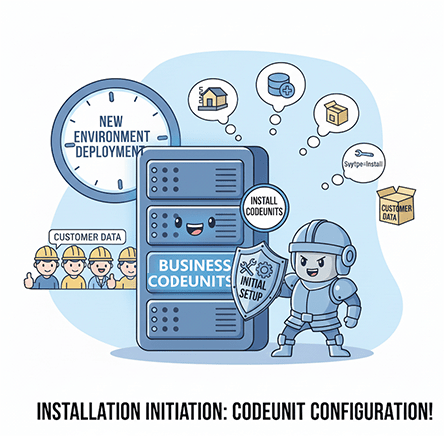
Install knight

This post is specifically about codeunits with SubType = Install; and how (and when) Business Central runs them.

What Is an Install Codeunit?

An install codeunit is a codeunit whose SubType is set to Install and includes AL methods for performing operations with the extension code itself:

  • When an extension is installed for the first time
  • When an uninstalled version is installed again (reinstall)

Install code is not part of an upgrade. If you publish a newer version and run a data upgrade, that’s upgrade codeunit territory.

Learn more about writing extension install code here.

The SubType Property (And What It Really Means)

The SubType property tells the platform what kind of codeunit you’re creating.

For install logic, the important bit is:

codeunit 50100 "DVLPR Install"
{
    SubType = Install;
}

Microsoft’s reference page for the property is here.

The Two Install Triggers: Per-Company vs. Per-Database

Install codeunits have two system triggers:

  • OnInstallAppPerCompany()
  • OnInstallAppPerDatabase()

The names are telling:

  • Per-company runs once for each company.
  • Per-database runs once for the whole tenant/database as part of the install.

A simple skeleton:

codeunit 50100 "DVLPR Install"
{
    SubType = Install;

    trigger OnInstallAppPerCompany()
    begin
        // Company-specific setup
    end;

    trigger OnInstallAppPerDatabase()
    begin
        // Tenant-wide setup
    end;
}

You Can Have More than One Install Codeunit (But Don’t Assume Order)

You can have multiple install codeunits in the same extension version.

But there’s an important catch from the docs: There’s no guaranteed execution order between different install codeunits.

So if you split install logic across multiple codeunits, design them so they can run independently (or at least safely if they run in any order).

Fresh Install vs. Reinstall: Use ModuleInfo.DataVersion()

A really practical pattern is to detect whether this is:

  • A true first-time install (no prior data)
  • A reinstall (data exists from a previous install)

The docs call out a convention: In install code, a DataVersion of 0.0.0.0 means “fresh/new install”.

You can access this using NavApp.GetCurrentModuleInfo and ModuleInfo:

codeunit 50100 "DVLPR Install"
{
    SubType = Install;

    trigger OnInstallAppPerDatabase()
    var
        CurrentModuleInfo: ModuleInfo;
    begin
        NavApp.GetCurrentModuleInfo(CurrentModuleInfo);

        if CurrentModuleInfo.DataVersion() = Version.Create(0, 0, 0, 0) then
            HandleFreshInstall()
        else
            HandleReinstall();
    end;

    local procedure HandleFreshInstall()
    begin
        // First install of this app in this tenant
        // e.g. create default setup, seed templates, etc.
    end;

    local procedure HandleReinstall()
    begin
        // App was installed before, removed, and installed again
        // e.g. validate/patch baseline records
    end;
}

If you want to go deeper into what you can read from ModuleInfo, the NavApp datatype docs are a good jumping-off point: Learn more about NavApp and ModuleInfo here

What Belongs in Install Code?

My rule of thumb: Install code should be idempotent and fast.

Good candidates:

  • Create extension setup records if missing
  • Initialize default values (like templates, configurations, default dimensions)
  • Seed reference data that your app expects to exist
  • Register things that prevent “first upgrade surprises” (more on that below)

Less-than-ideal candidates:

  • Long-running data migrations (that’s upgrade code)
  • Anything that depends on user interaction (install runs in a system context)
  • Anything that can’t be safely retried

Install Code + Upgrade Tags (So Your First Upgrade Doesn’t Re-run Old Steps)

If you use upgrade tags to guard upgrade steps, a recommended approach is to register the tag(s) during install.

That way, when the customer upgrades later, your upgrade code doesn’t run a migration step just because the tag table is empty.

I covered upgrade tags (and version gating) in a separate post:

Wrapping Up

Install codeunits are one of those features you don’t think about much—until you need them.

Use them to make your extension feel polished on day one: Create the defaults, seed the data you know you’ll need, and put guard rails in place so later upgrades stay predictable.

Learn more:

Note: This content is for informational and demonstration purposes only. Always test installation logic in a sandbox and make sure it’s safe to run repeatedly.

Permanent link to this article: https://www.dvlprlife.com/2026/01/install-codeunits-in-business-central-subtype-install/

How to install Pi-hole on your Synology NAS

Pi-hole is an open-source, network-wide ad-blocking software. It blocks advertisements, trackers, and unwanted content across your entire home network by intercepting and filtering DNS requests before they reach ad-serving domains.

Unlike browser extensions that work only on individual devices or browsers, Pi-hole operates at the network level, protecting all connected devices— without requiring any software installed on them.

How It Works

  • You set up Pi-hole on a device (typically a Raspberry Pi, but it can also run in Docker, a virtual machine, or other Linux systems).
  • Configure your router (or individual devices) to use Pi-hole as the DNS server.
  • When a device tries to load a webpage or app, it queries DNS for domain names (e.g., “ads.example.com”).
  • Pi-hole checks against blocklists (millions of known ad/tracker domains) and returns a “null” response for blocked ones, preventing ads from loading.
  • Legitimate requests pass through normally.

Key Benefits

  • Blocks ads in apps and places where traditional blockers can’t reach.
  • Improves privacy by stopping trackers.
  • Reduces bandwidth usage and speeds up browsing (fewer ads to load).
  • Provides a web dashboard for stats, query logs, and custom block/allow lists.
  • It can also serve as a DHCP server if needed.

Step-by-Step Instructions:

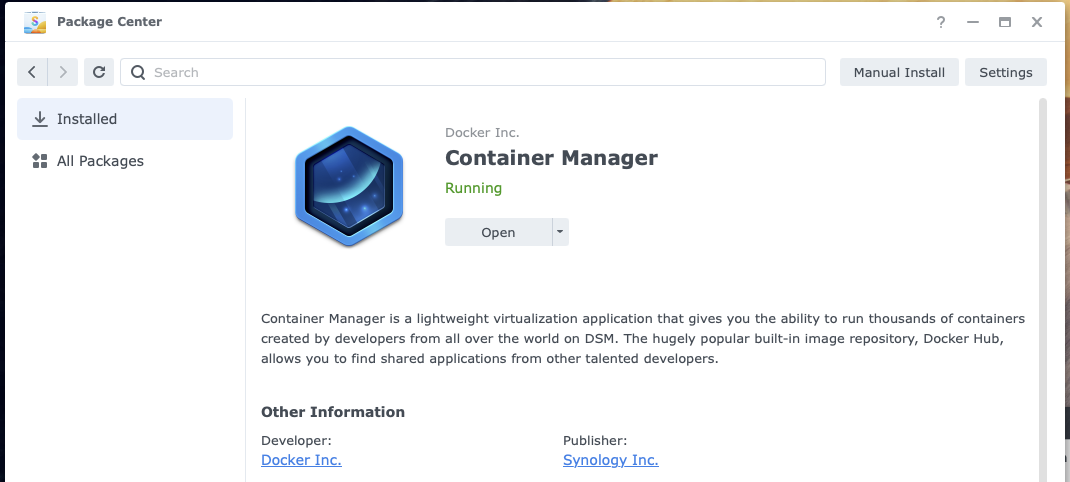
  1. Install the Container Manager on your Synology NAS. Developed by Docker and published by Synology.
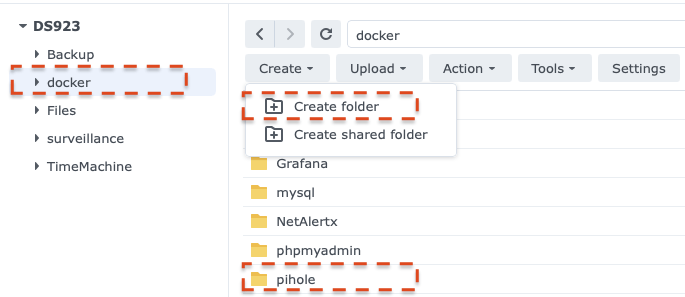
  2. Create a shared Docker folder for storing your Docker containers.
  3. Inside the Docker folder, create a new folder and name it pihole.
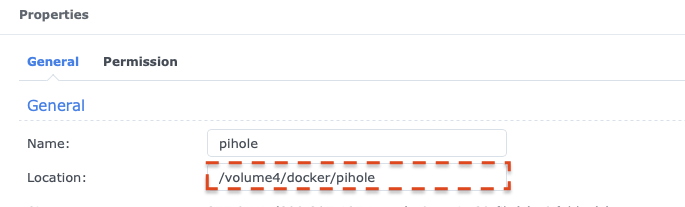
  4. Find the absolute path of the folder created in step 3 by viewing the properties of the folder.
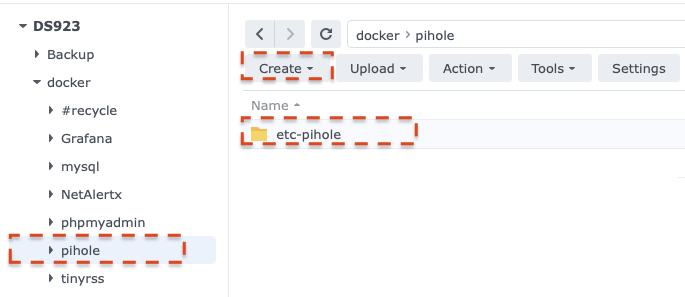
  5. In the pihole folder, created in step 3, create a new folder named etc-pinhole. (make the folder name  lowercase)
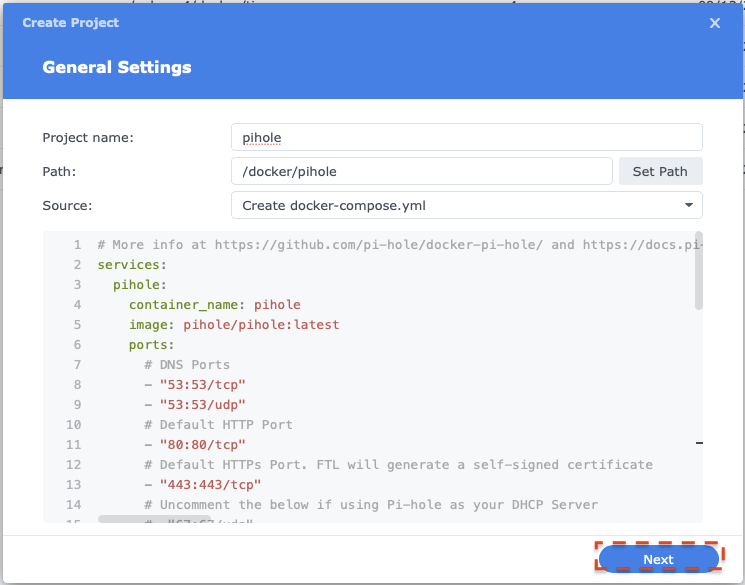
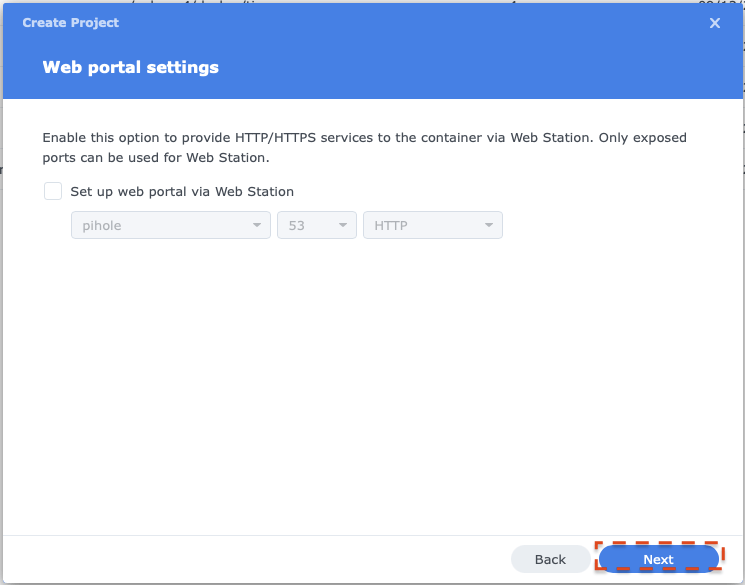
  6. In Container Manager, create a new project and name it pihole. Set the path to the pihole folder created in step 3, and select Create docker-compose.yaml as the source.
  7. Enter the following configuration information into the source box. Replace the volume paths with the path from step 4. The sample configuration shows /volume4/docker/pihole/ as an example; replace this with your path.
    # More info at https://github.com/pi-hole/docker-pi-hole/ and https://docs.pi-hole.net/
    services:
    pihole:
    container_name: pihole
    hostname: pihole
    image: pihole/pihole:latest
    ports:
    # DNS Ports
    - "53:53/tcp"
    - "53:53/udp"
    # Default HTTP Port
    - "8082:80/tcp"
    # Default HTTPs Port. FTL will generate a self-signed certificate
    #- "443:443/tcp"
    # Uncomment the below if using Pi-hole as your DHCP Server
    #- "67:67/udp"
    # Uncomment the line below if you are using Pi-hole as your NTP server
    #- "123:123/udp"
    environment:
    # Set the appropriate timezone for your location from
    # https://en.wikipedia.org/wiki/List_of_tz_database_time_zones, e.g:
    TZ: 'America/New_York'
    # Set a password to access the web interface. Not setting one will result in a random password being assigned
    FTLCONF_webserver_api_password: '<your_password>'
    # If using Docker's default `bridge` network setting the dns listening mode should be set to 'ALL'
    FTLCONF_dns_listeningMode: 'ALL'
    # Volumes store your data between container upgrades
    volumes:
    # For persisting Pi-hole's databases and common configuration file
    - /volume4/docker/pihole/etc-pihole:/etc/pihole
    # Uncomment the below if you have custom dnsmasq config files that you want to persist. Not needed for most starting fresh with Pi-hole v6. If you're upgrading from v5 you and have used this directory before, you should keep it enabled for the first v6 container start to allow for a complete migration. It can be removed afterwards. Needs environment variable FTLCONF_misc_etc_dnsmasq_d: 'true'
    #- './etc-dnsmasq.d:/etc/dnsmasq.d'
    #cap_add:
    # See https://github.com/pi-hole/docker-pi-hole#note-on-capabilities
    # Required if you are using Pi-hole as your DHCP server, else not needed
    # - NET_ADMIN
    # Required if you are using Pi-hole as your NTP client to be able to set the host's system time
    # - SYS_TIME
    # Optional, if Pi-hole should get some more processing time
    # - SYS_NICE
    restart: unless-stopped
  8. Click Next
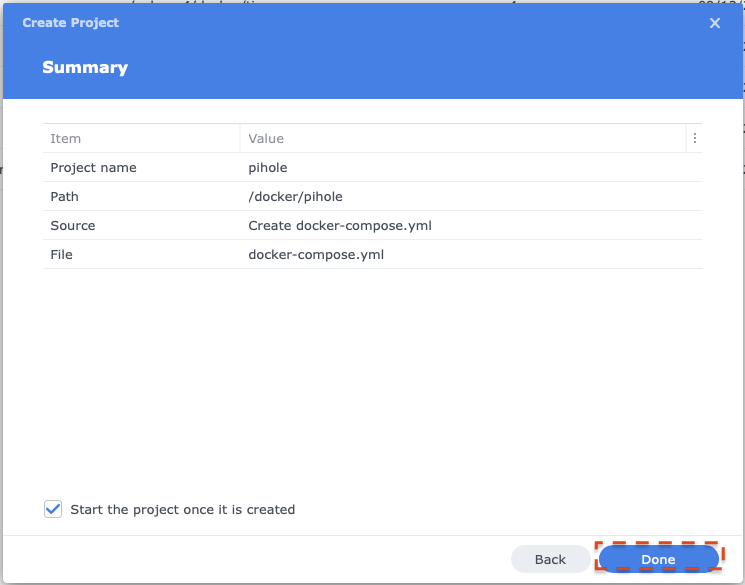
  9. Click Next
  10. Click Done to start the installation.
  11. Once installation is complete, access your Pi-hole installation through the host address of your Synology NAS, port 8082 (specified in the compose YAML).


Note: There are many configuration options that can be specified in the compose.yaml file. Refer to https://docs.pi-hole.net/docker/ for more information.

Permanent link to this article: https://www.dvlprlife.com/2026/01/how-to-install-pi-hole-on-your-synology-nas/

Quick Tips: Pin Tabs in Visual Studio Code

Welcome to Quick Tips — a fast, focused series designed to help you work smarter.

Each post will give you one practical insight you can apply immediately, whether you’re coding, configuring your tools, or improving your workflow.

Here’s today’s Quick Tip:

Pin Tab in VS Code

When you’re bouncing between files in Visual Studio Code, it’s easy for tabs to get replaced or closed as you navigate.

If there’s a file you want to keep open (and easy to find), VS Code has a simple feature for that: pinned tabs.

Pinned tabs always stay visible and won’t get “swept away” by common tab-closing actions. They’re perfect for:

  • A main file you reference often
  • A configuration file you don’t want to lose track of
  • A long-running script you’re actively editing

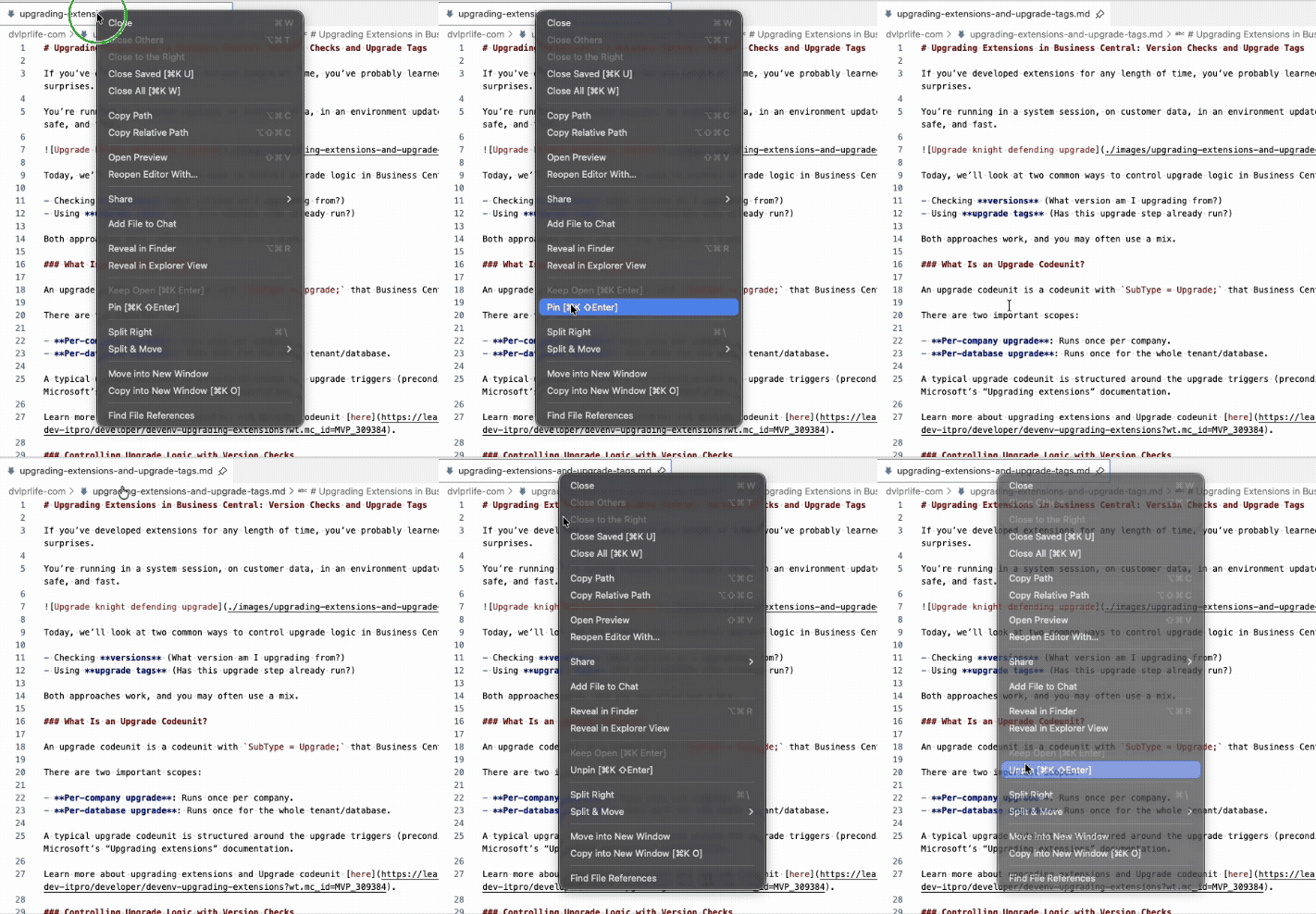
How to Pin a Tab

  • Right‑click the tab you want to keep open
  • Select Pin
  • Or use the keyboard shortcut Ctrl+K Shift+Enter on Windows or Cmd+K Shift+Enter on Mac on the opened tab

Pinned tabs shift to the left and display a small pin icon so you can spot them instantly.

How to Unpin a Tab

  • Right‑click the pinned tab
  • Select Unpin
  • Or use the keyboard shortcut Ctrl+K Shift+Enter on Windows or Cmd+K Shift+Enter on Mac on the opened tab

Why It Helps

This simple feature keeps your workspace organized and reduces the mental overhead of hunting for files you didn’t mean to close.

It’s one of those small productivity boosts that adds up over time.

Got a favorite shortcut or workflow tweak? Share it in the comments and subscribe to dvlprlife.com for more Quick Tips like this one!

Permanent link to this article: https://www.dvlprlife.com/2026/01/quick-tips-pin-tabs-in-vs-code/

Upgrading Extensions in Business Central: Version Checks and Upgrade Tags

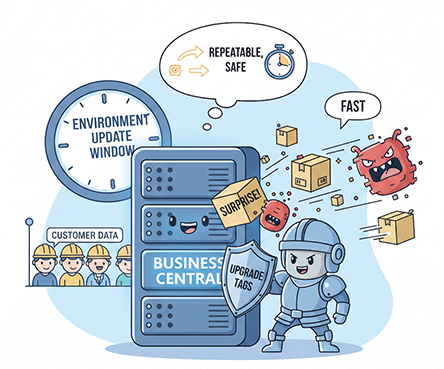
If you’ve developed extensions for any length of time, you’ve probably learned the hard way that “upgrade code” is not where you want surprises.

You’re running in a system session, on customer data, in an environment update window, and whatever you do needs to be repeatable, safe, and fast.

Today, we’ll look at two common ways to control upgrade logic in Business Central:

  • Checking versions (What version am I upgrading from?)
  • Using upgrade tags (Has this upgrade step already run?)

Both approaches work, and you may often use a mix.

What Is an Upgrade Codeunit?

An upgrade codeunit is a codeunit with SubType = Upgrade; that Business Central executes as part of an extension upgrade.

There are two important scopes:

  • Per-company upgrade: Runs once per company.
  • Per-database upgrade: Runs once for the whole tenant/database.

A typical upgrade codeunit is structured around the upgrade triggers (preconditions → upgrade → validation). You’ll see these in Microsoft’s “Upgrading extensions” documentation.

Learn more about upgrading extensions and Upgrade codeunit here.

Controlling Upgrade Logic with Version Checks

The “classic” approach is to gate each upgrade step by checking the version you’re upgrading from.

In upgrade code, you can read version information using NavApp.GetCurrentModuleInfo and then compare against ModuleInfo.DataVersion() (commonly interpreted as the data version you’re upgrading from).

Example (simplified):

codeunit 50160 "DVLPR Upgrade"
{
    SubType = Upgrade;

    trigger OnUpgradePerCompany()
    var
        CurrentModuleInfo: ModuleInfo;
    begin
        NavApp.GetCurrentModuleInfo(CurrentModuleInfo);

        // Only run this step when upgrading from versions older than 2.0.0.0
        if CurrentModuleInfo.DataVersion() < Version.Create(2, 0, 0, 0) then
            UpgradeStep_200();
    end;

    local procedure UpgradeStep_200()
    begin
        // data transformation, backfill, etc.
    end;
}

This pattern is straightforward and works well when:

  • You have a small number of versions to support.
  • Each upgrade step cleanly maps to a specific “from version” range.

Where it gets messy is when you’ve shipped many versions, had hotfixes, or need to make upgrade code resilient against partial runs.

The Problem with Pure Version Checks

Version checks alone don’t tell you whether the step has already executed successfully.

For example:

  • A tenant may have attempted an update, failed halfway through, and then retried.
  • You may ship a fix that needs to run even if the version comparison still matches.
  • You may be backporting an upgrade step into a servicing build.

In those cases, “Did we already run this exact step?” is a better question than, “What version are we upgrading from?”

Upgrade Tags: A Reliable Way to Make Upgrade Steps Idempotent

Upgrade tags are essentially a durable marker that says: “This specific upgrade step has been completed.”

Business Central provides the System.Upgrade codeunit “Upgrade Tag” (ID 9999) for this.

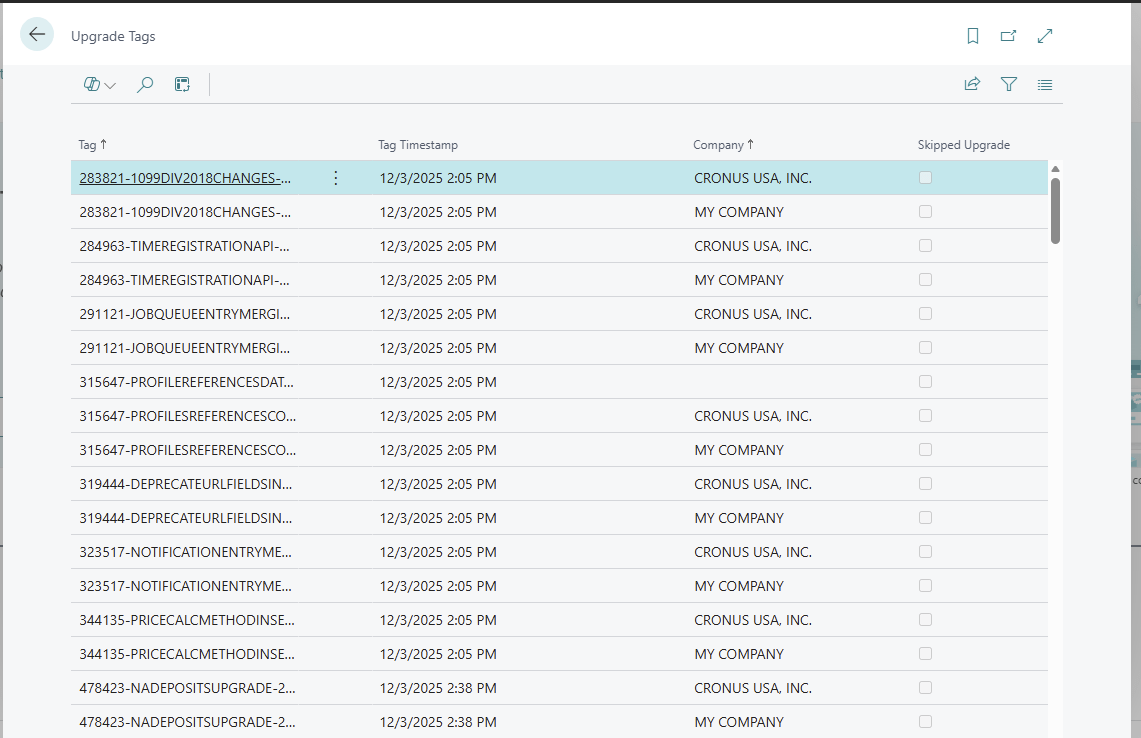
If you ever need to see what tags currently exist in an environment, you can open page 9985 Upgrade Tags to view the stored upgrade tags.

Microsoft Learn reference: Codeunit “Upgrade Tag”

The two methods you’ll use most often are:

  • HasUpgradeTag(Tag: Code[250]): Boolean
  • SetUpgradeTag(NewTag: Code[250])

(There are also database-scoped methods like HasDatabaseUpgradeTag and SetDatabaseUpgradeTag when you need a tag that applies at the database level.)

Example: Using HasUpgradeTag / SetUpgradeTag in an Upgrade Codeunit

Here’s the basic pattern:

  1. Check if the tag exists.
  2. If it does, exit (step already completed).
  3. Run the upgrade logic.
  4. Set the tag.
codeunit 50161 "DVLPR Upgrade With Tags"
{
    SubType = Upgrade;

    trigger OnUpgradePerCompany()
    var
        UpgradeTag: Codeunit "Upgrade Tag";
        Tag: Code[250];
    begin
        Tag := 'DVLPR-50161-PerformUpgradeSomething-20260105';
        if UpgradeTag.HasUpgradeTag(Tag) then
            exit;

        PerformUpgradeSomething();

        UpgradeTag.SetUpgradeTag(Tag);
    end;

    local procedure PerformUpgradeSomething()
    begin
        // data transformation, backfill, etc.
    end;
}

A few notes:

  • The tag format is up to you, but make it unique and traceable. A common pattern is CompanyPrefix-WorkItem-Description-YYYYMMDD.
  • The critical part is when you set the tag—set it only after the step is complete.

Version Checks + Upgrade Tags Together

In many real upgrades, the best solution is a hybrid:

  • Use version checks to decide whether a step is relevant.
  • Use an upgrade tag to ensure the step runs once, at most.

Example:

trigger OnUpgradePerCompany()
var
    CurrentModuleInfo: ModuleInfo;
    UpgradeTag: Codeunit "Upgrade Tag";
    Tag: Code[250];
begin
    NavApp.GetCurrentModuleInfo(CurrentModuleInfo);

    if CurrentModuleInfo.DataVersion() >= Version.Create(2, 0, 0, 0) then
        exit;

    Tag := 'DVLPR-200-UpgradeStep-20260105';
    if UpgradeTag.HasUpgradeTag(Tag) then
        exit;

    UpgradeStep_200();
    UpgradeTag.SetUpgradeTag(Tag);
end;

A Practical Reminder: Order Isn’t Guaranteed Across Upgrade Codeunits

One important design point from the platform: If you have multiple upgrade codeunits, the execution order between different upgrade codeunits is not something you should rely on.

Keep upgrade steps independent, or consolidate logically dependent work into a single upgrade codeunit.

Wrapping Up

You can control upgrade code in Business Central by checking versions, but upgrade tags add a second layer of safety: They let you make individual upgrade steps idempotent and resilient across retries and long-lived version histories.

If you’re building an extension that you expect to ship and maintain for years, upgrade tags are one of the best tools you can adopt early on.

Learn more:

Note: The code and information discussed in this article are for informational and demonstration purposes only. Always test upgrade code in a sandbox and make sure it behaves correctly on a copy of production data. This content was written referencing Microsoft Dynamics 365 Business Central 2025 Wave 2 online.

Permanent link to this article: https://www.dvlprlife.com/2026/01/upgrading-extensions-in-business-central-version-checks-and-upgrade-tags/

The Access Property in Business Central (AL)

If you build extensions long enough, you eventually get burned by a dependency you didn’t mean to create: another app starts calling into your “helper” codeunit, or relies on a table/field you never intended as public API. Later, you refactor—and everything breaks.

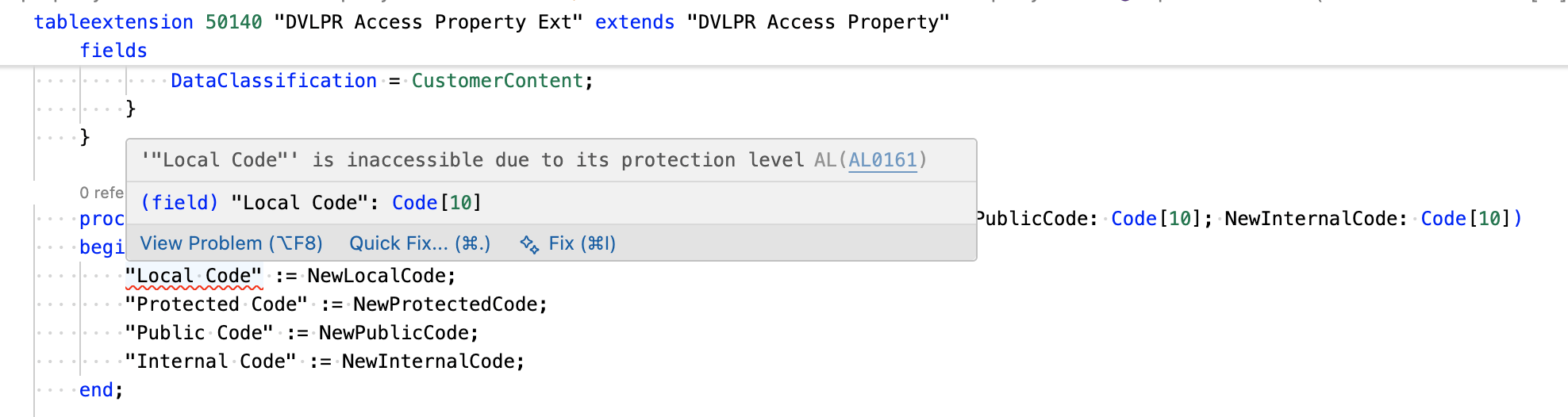
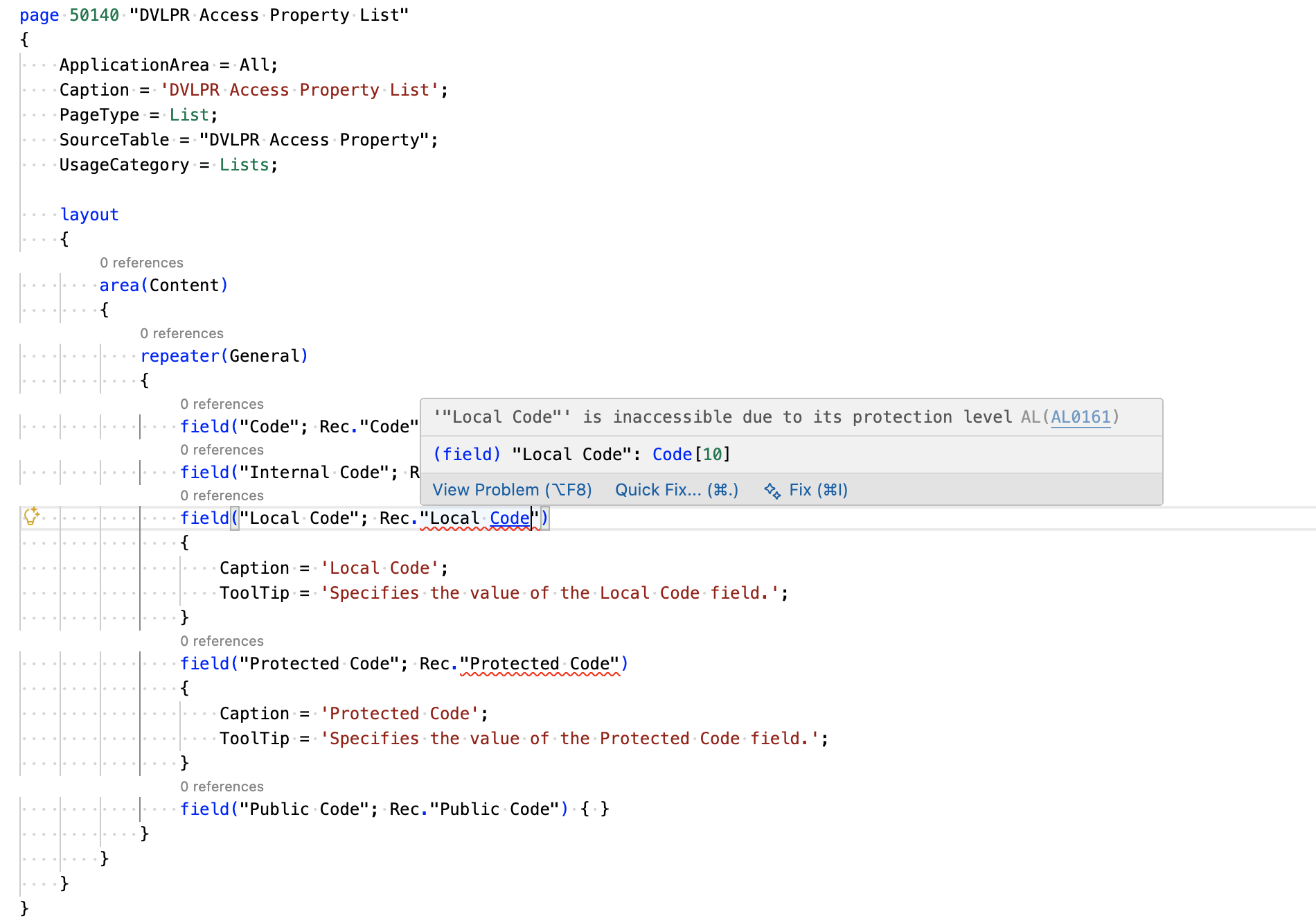
Local Access Levels are not accessible outside the table or table extension

That’s the real value of the Access property: it lets you define (at compile time) what’s part of your supported surface area versus what’s strictly internal implementation.

What Is the Access Property?

The Access property sets the compile-time visibility of an AL object (and, for tables, of individual fields). In practice, it controls whether other AL code can take a direct reference to that symbol.

Think of it as the AL equivalent of “public vs internal” in other languages, but scoped to apps (modules) and extension objects.

What the Access Property Applies To

Access applies to:

  • Codeunit
  • Query
  • Table
  • Table field
  • Enum
  • Interface
  • PermissionSet

Object-Level Access: Public vs Internal

For most objects (tables, codeunits, queries, interfaces, enums), you’ll typically use:

  • Access = Public; (default): Other apps that reference your app can use the object.
  • Access = Internal;: Only code inside your app can reference the object.

Example: keep a table internal so nobody else compiles against it:

table 50111 "DVLPR Internal Staging"
{
    DataClassification = CustomerContent;
    Access = Internal;

    fields
    {
        field(1; "Entry No."; Integer) { }
        field(2; Payload; Blob) { }
    }
}

Table Field Access: Local, Protected, Internal, Public

Table fields add two extra options that are incredibly useful for designing clean extensibility:

  • Local: Only code in the same table or the same table extension object where the field is defined can reference the field.
  • Protected: Code in the base table and table extensions of that table can reference the field.
  • Internal: Anything inside the same app can reference the field.
  • Public (default): Any referencing app can reference the field.

Example: Table with different field access levels:

table 50140 "DVLPR Access Property"
{
    Access = Public;
    Caption = 'DVLPR';
    DataClassification = CustomerContent;

    fields
    {
        field(1; "Code"; Code[10])
        {
            Caption = 'Code';
            ToolTip = 'Specifies the value of the Code field.';
        }
        field(2; "Local Code"; Code[10])
        {
            Access = Local;
            Caption = 'Local Code';
            ToolTip = 'Specifies the value of the Local Code field.';
        }
        field(3; "Protected Code"; Code[10])
        {
            Access = Protected;
            Caption = 'Protected Code';
            ToolTip = 'Specifies the value of the Protected Code field.';
        }
        field(4; "Public Code"; Code[10])
        {
            Access = Public;
            Caption = 'Public Code';
            ToolTip = 'Specifies the value of the Public Code field.';
        }
        field(5; "Internal Code"; Code[10])
        {
            Access = Internal;
            Caption = 'Internal Code';
            ToolTip = 'Specifies the value of the Internal Code field.';
        }
    }
    keys
    {
        key(PK; "Code")
        {
            Clustered = true;
        }
    }
}

The Access levels for table fields are especially useful when you want to allow controlled extensibility without opening up everything.

Local and Protected Access Levels are not accessible outside the table or tableextension

If, for example, you have a field with Access = Local, you won’t be able to reference it by name from a page, report, or codeunit—even inside the same app.

One more practical detail from the platform: table and field accessibility affects the in-client Designer. Only Public table fields can be added to pages using Designer.

Sharing Internals Between Your Own Apps: internalsVisibleTo

Sometimes you do want internals shared—but only with your own “companion” apps. That’s where internalsVisibleTo in app.json comes in.

It allows specific friend modules to compile against your Access = Internal objects.

Example app.json snippet:

{
  "internalsVisibleTo": [
    {
      "id": "00000000-0000-0000-0000-000000000000",
      "name": "DVLPR Companion App",
      "publisher": "DVLPRLIFE"
    }
  ]
}

Important: Access Is Compile-Time Only (Not Security)

This is the part that’s easy to misunderstand.

Access is enforced at compile time. It is not a runtime security boundary.

One way to think about it: Access controls who can compile against your symbols, not who can ultimately interact with data at runtime. Business Central still has reflection-style mechanisms (such as RecordRef, FieldRef, and TransferFields) that can work with tables/fields without a direct symbol reference.

For example, even though the Local Code field is marked as Access = Local, you can still technically read and write it using RecordRef and FieldRef (because those APIs work by field number rather than a compile-time field reference):

    procedure GetLocalCode(): Code[10]
    var
        RecordRef: RecordRef;
        FieldRef: FieldRef;
        LocalCode: Code[10];
    begin
        RecordRef.GetTable(Rec);
        FieldRef := RecordRef.Field(2);
        LocalCode := FieldRef.Value;
        RecordRef.Close();

        exit(LocalCode);
    end;

    procedure SetLocalCode(NewLocalCode: Code[10])
    var
        RecordRef: RecordRef;
        FieldRef: FieldRef;
    begin
        RecordRef.GetTable(Rec);
        FieldRef := RecordRef.Field(2);
        FieldRef.Value := NewLocalCode;
        RecordRef.Modify();
        RecordRef.Close();
    end;

When I Reach for Each Level

My personal defaults:

  • Public: Objects/fields I’m willing to support as a stable contract.
  • Internal: Implementation objects I expect to refactor freely.
  • Protected (fields): When I want controlled extensibility through table extensions.
  • Local (fields): Fields that are strictly internal to the table logic.

Wrapping Up

The Access property is one of the most practical tools you have for keeping an extension maintainable over time. It helps you draw a clear line between API and implementation, reduces accidental coupling between apps, and makes your intent obvious to anyone reading your symbols.

Learn more about access modifiers here.

Learn more about the Access property here.

Learn more about internalsVisibleTo in the app.json schema here.

Note: The code and information discussed in this article are for informational and demonstration purposes only. The Access property is available from runtime version 4.0.

Permanent link to this article: https://www.dvlprlife.com/2025/12/the-access-property-in-business-central-al/