
Welcome to Quick Tips — a fast, focused series designed to help you work smarter.
Each post will give you one practical insight you can apply immediately, whether you’re coding, configuring your tools, or improving your workflow.
Here’s today’s Quick Tip:
Rearrange the Activity Bar and Side Bars
VS Code lets you reshape the editor to fit how you actually work. The Activity Bar (the strip with icons for Explorer, Search, Source Control, etc.) and the sidebars (Primary and Secondary) can all be moved around in just a few clicks.
If the default layout feels cramped — or you want your file explorer on the right instead of the left — you don’t have to live with it.
How to Move the Activity Bar
- Right-click the Activity Bar
- Hover Activity Bar Position
- Choose Top, Bottom, Left, Right, or Hidden
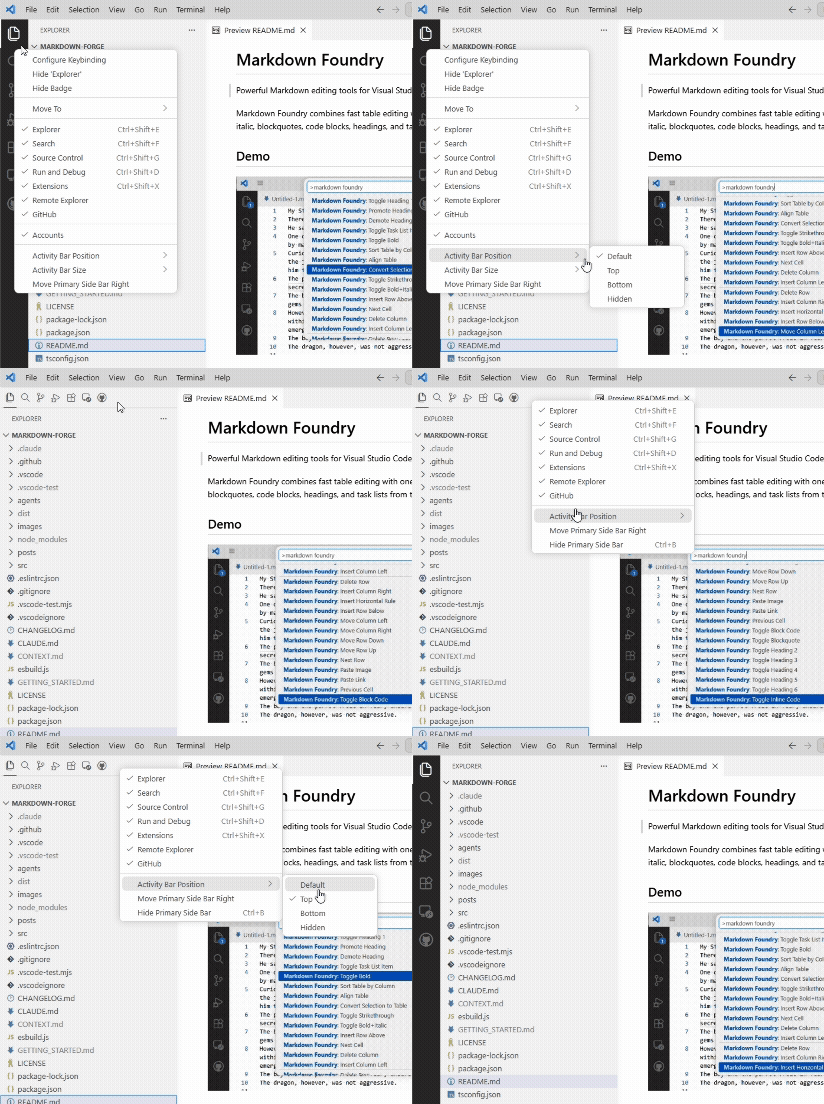
Moving it to the Top is great for reclaiming vertical space on smaller screens.
How to Move the Side Bars
- Right-click the Activity Bar or the side bar header
- Select Move Primary Side Bar Right (or Left)
- Drag any view (like Explorer or Source Control) into the Secondary Side Bar on the opposite side to keep two panels open at once
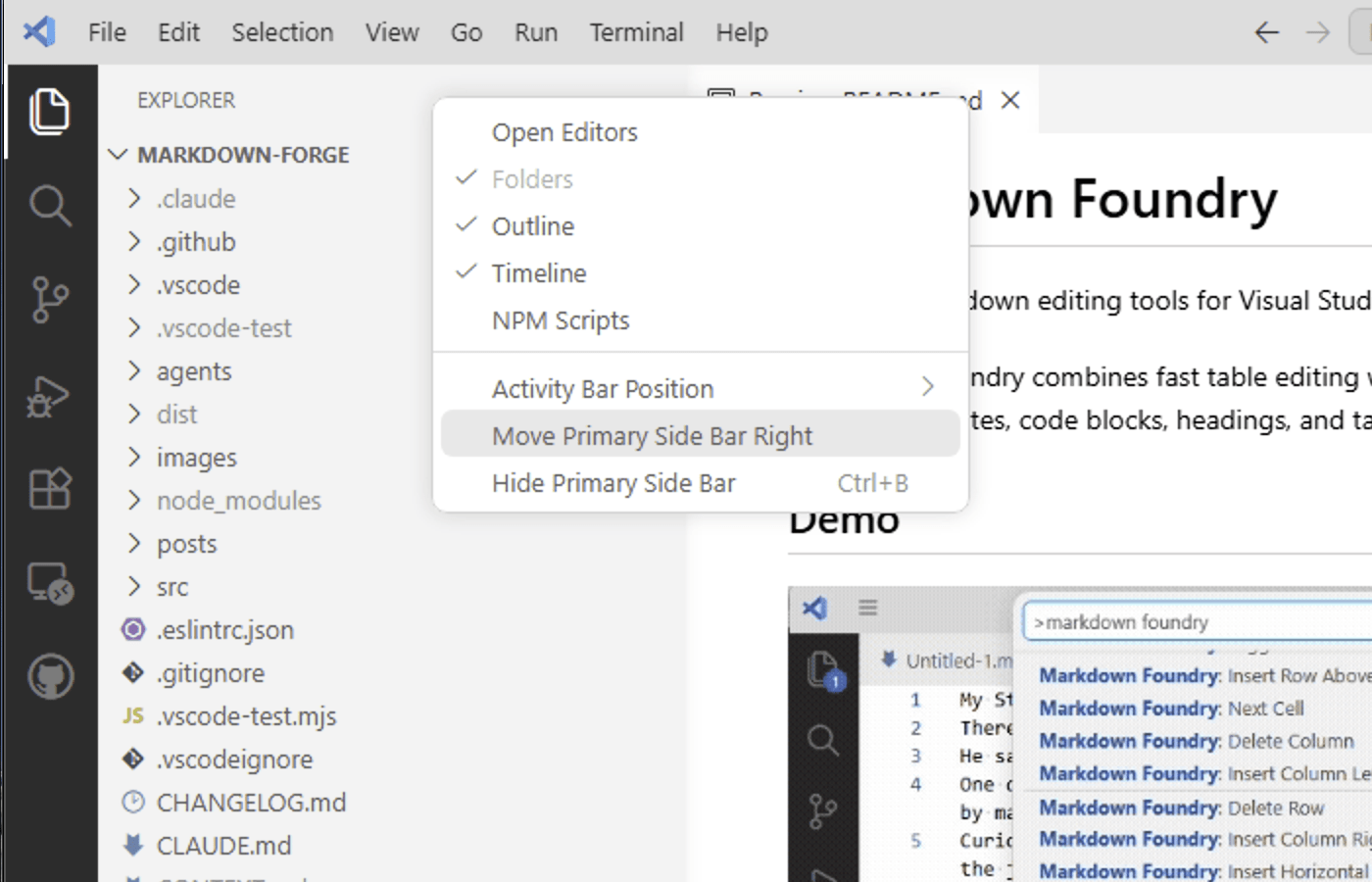
How to Show Icons or Labels
- Right-click the Activity Bar
- Toggle Show Activity Icons to hide or show the icons
- Toggle Show Activity Labels to display text labels under (or next to) each icon
Labels are especially helpful when you’re onboarding a teammate or recording a demo.
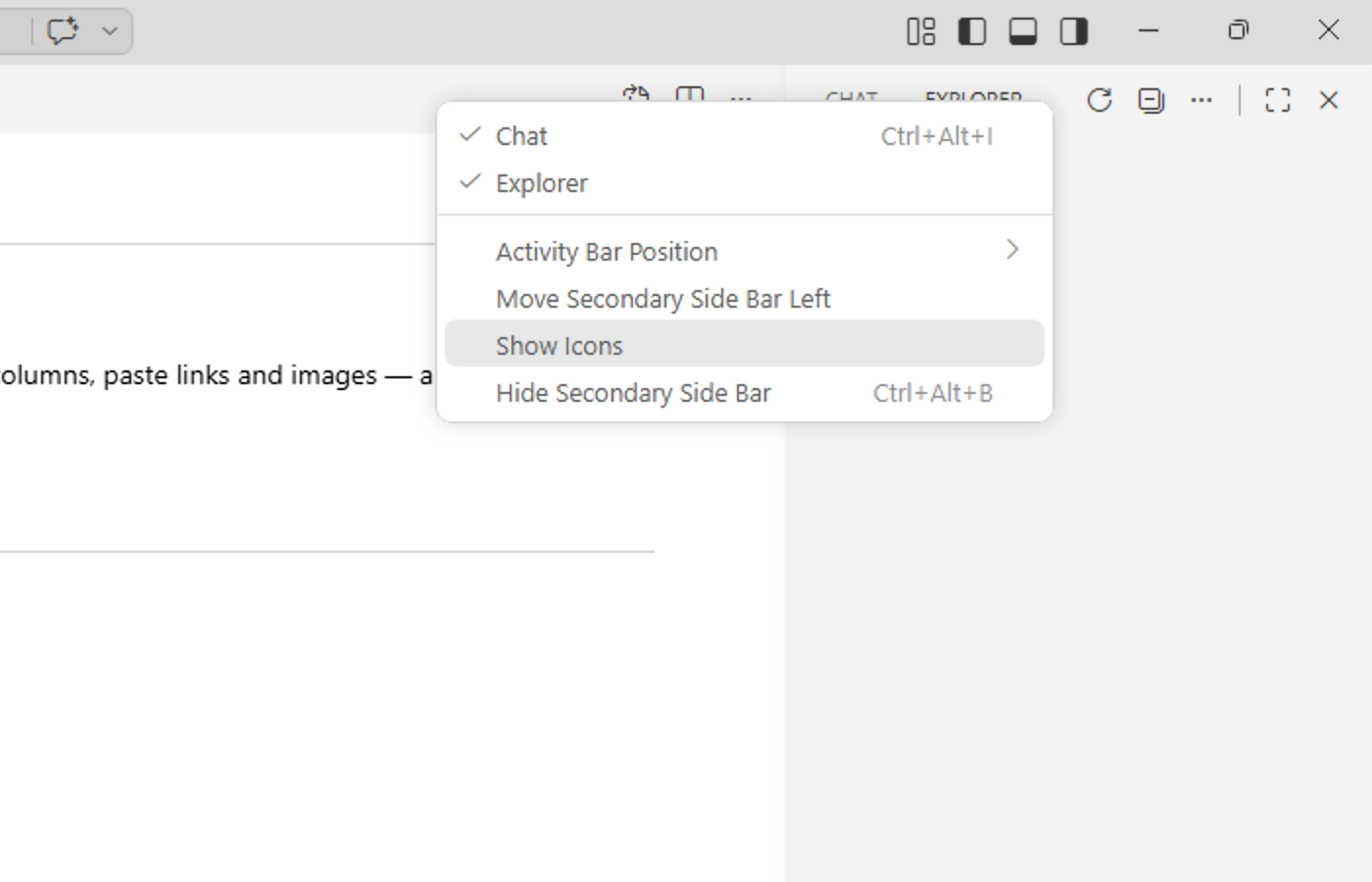
Why It Helps
- Tailor the layout to your monitor size and workflow
- Keep two side bar views open at the same time using the Secondary Side Bar
- Reduce visual noise by hiding the Activity Bar entirely when you want a focused editor
- Make the UI more discoverable for new users by turning labels on
Got a favorite shortcut or workflow tweak? Share it in the comments and subscribe to dvlprlife.com for more Quick Tips like this one!