
If you’ve worked on an AL project where the sandbox was offline, the launch.json pointed to a tenant you no longer had access to, or you just wanted to spin up a quick proof-of-concept without provisioning anything, you’ve felt the friction of how symbols used to work. The standard flow — AL: Download symbols, hit a Business Central environment, pull from there — falls apart the moment that environment isn’t reachable or a version mismatch occurs. (yes, copying the symbols from another folder works, but it’s a hassle and not something you want to rely on regularly).
Business Central 2026 Wave 1 (v28), paired with AL Language extension v17, adds a much better option: pull symbols straight from Microsoft’s public NuGet feed (or your own).

What’s New?
There’s a new VS Code command:
AL: Download Symbols from Global Sources
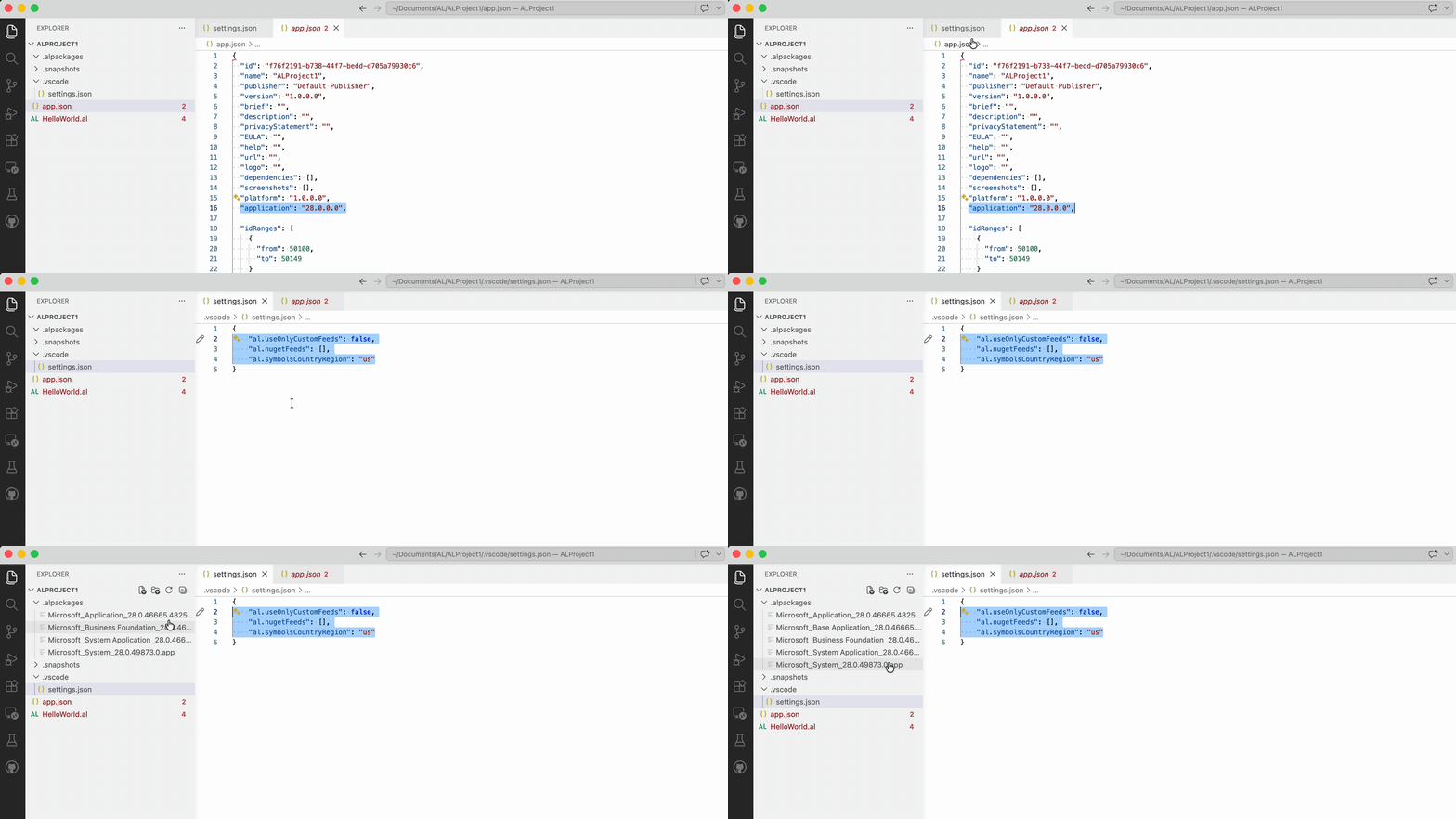
Run it from the Command Palette and the AL extension downloads the application packages your project depends on from Microsoft’s public NuGet feed — matched to whatever version you’ve set in the application tag of your app.json. No environment, no launch.json, no tenant required.
It also opens the door to two things the old flow couldn’t do cleanly:
- Pulling from custom NuGet feeds (your own AppSource mirror, internal package feed, etc.).
- Picking a specific country/region package at download time, instead of being tied to whatever localization the connected tenant happens to have.
Why You Should Care
- Onboarding is faster. A new dev can clone the repo, open VS Code, and have working symbols without anyone provisioning a sandbox first.
- Localized development is easier. Switching between W1, US, DE, etc. is a setting, not a tenant change.
- Build agents stop being a special case. CI pipelines no longer need credentials to a BC environment just to resolve symbols.
- Custom feeds give you supply-chain control. You can host your own dependencies on a private feed and lock the resolver to it.
How It Works
The command looks at app.json for the application version, then queries:
- Microsoft’s built-in public NuGet feeds (unless you turn them off).
- Any custom feeds you’ve added in
settings.json, in the order they’re listed.
Symbols land in your .alpackages folder the same way they always have — the difference is purely where they came from.
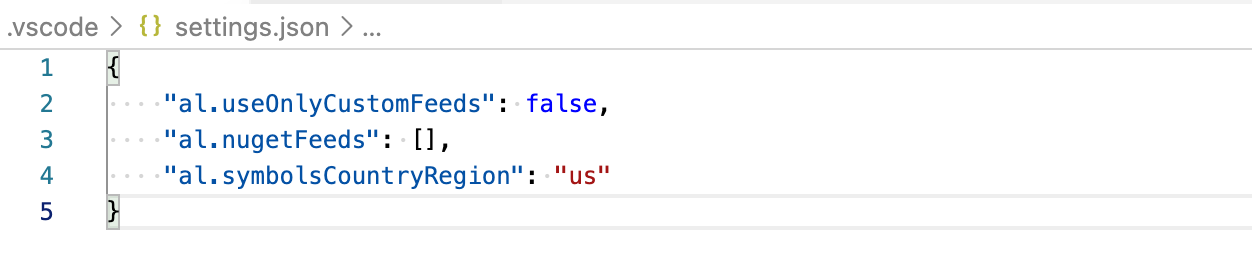
Three new settings drive the behavior, all under the al.* namespace:
| Setting | Purpose |
|---|---|
al.nugetFeeds |
Array of custom NuGet v3 feed URLs to search after Microsoft’s built-in feeds. |
al.useOnlyCustomFeeds |
When true, skip Microsoft’s feeds entirely and use only al.nugetFeeds. |
al.symbolsCountryRegion |
Country/region for the localized package — ISO 3166-1 alpha-2 (us, de, dk, …) or w1 for worldwide. If unset, you’ll be prompted at download time. |
Example
A typical settings.json for a project that pulls W1 symbols from Microsoft’s feed:
{
  "al.symbolsCountryRegion": "w1"
}
Add a custom feed alongside Microsoft’s:
{
  "al.nugetFeeds": [
    "https://pkgs.dev.azure.com/myorg/myproject/_packaging/myfeed/nuget/v3/index.json"
  ],
  "al.symbolsCountryRegion": "us"
}
Lock everything to your internal feed only:
{
  "al.nugetFeeds": [
    "https://pkgs.dev.azure.com/myorg/myproject/_packaging/myfeed/nuget/v3/index.json"
  ],
  "al.useOnlyCustomFeeds": true,
  "al.symbolsCountryRegion": "us"
}
Points to Note
- Custom feeds must be public NuGet v3 feeds without authentication. If your feed needs credentials, the resolver won’t be able to use it as-is.
- Version is driven by
app.json. Theapplication(and dependency) versions in your manifest are what the feed resolves against — check there first if you get unexpected symbol versions. - Country/region must match what’s actually published to the feed. ISO alpha-2 only, or
w1for worldwide. - Pin the country in
settings.jsonfor any project that’s targeting a specific localization. Relying on the prompt is fine for one-offs, but it’s inconsistent when multiple devs work on the same repo. - The old
AL: Download symbolscommand still works — this is an additional option, not a replacement. Use whichever fits the situation: the global-sources command for offline/CI/quick-start scenarios, the classic command when you need symbols from a specific live tenant (e.g., it has a per-tenant extension installed).
Wrapping Up
Tying symbol downloads to a live BC environment was always a workflow tax — useful when the environment was the source of truth, painful when it wasn’t. Pulling straight from NuGet removes that coupling in most cases, and the custom-feed support makes it usable for organizations that need to keep dependency resolution within their own walls.
If you haven’t tried AL: Download Symbols from Global Sources yet, give it a run on your next project — odds are it’ll become the command you reach for first.
Learn more:
Note: The code and information discussed in this article are for informational and demonstration purposes only. Always test in a sandbox first. This content was written referencing Microsoft Dynamics 365 Business Central 2026 release wave 1 (v28) and AL Language extension v17.