

Using the “Role Explorer” in Microsoft Dynamics 365 Business Central, you can get an overview of the features available to your Role. Each of the “Role Explorer” elements is an action, and a means to navigate Microsoft Dynamics 365 Business Central (I have heard this many times referred to as a “menu”).
Elements can be added to the “Role Explorer” by extending the Role Center being viewed. The following snippet is an example that extends the Business Manager Role to add an action that opens a page.
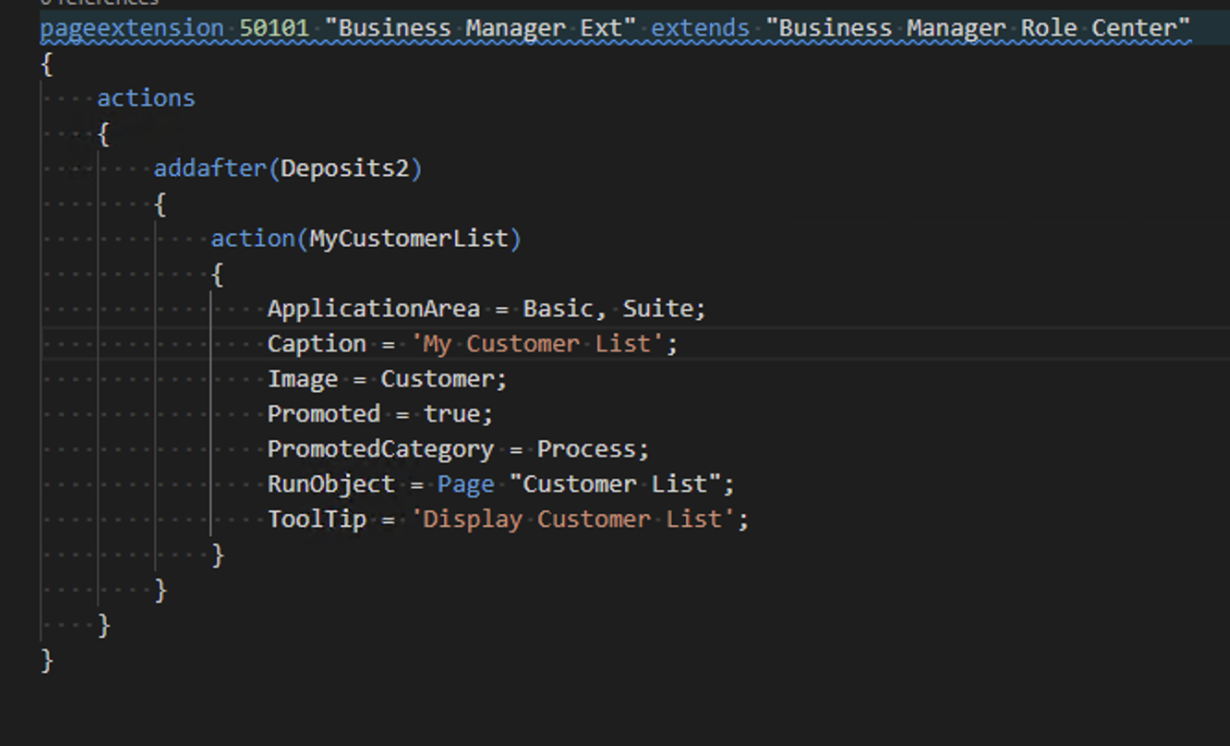
pageextension 50101 "Business Manager Ext" extends "Business Manager Role Center"
{
    actions
    {
        addafter(Deposits2)
        {
            action(MyCustomerList)
            {
                ApplicationArea = Basic, Suite;
                Caption = 'My Customer List';
                Image = Customer;
                Promoted = true;
                PromotedCategory = Process;
                RunObject = Page "Customer List";
                ToolTip = 'Display Customer List';
            }
        }
    }
}
Note: The code listed in this article is for demonstration purposes only
![The extension [extension name] by [publisher name] is making a request to an external service. Do you want to allow this request?](https://www.dvlprlife.com/wp-content/uploads/2022/06/HttpClient-1.png)

 available.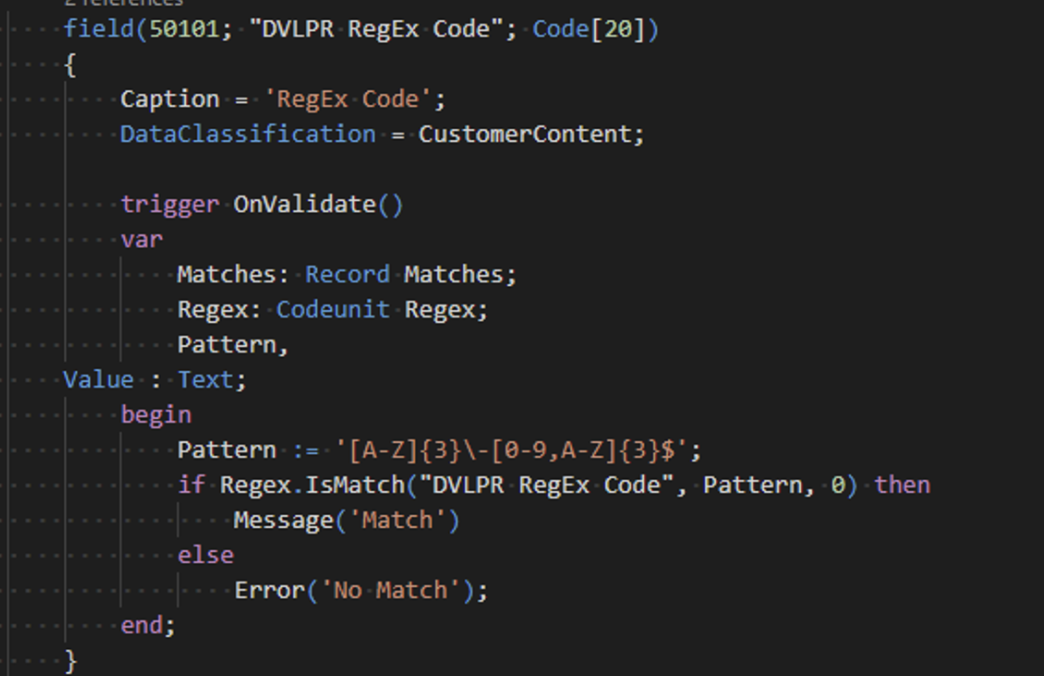
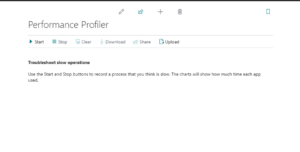 With each update of Dynamics 365 Business Central, Microsoft enhances what is often referred to as the base application and enhances the development environment. Dynamics 365 Business Central 2022 Wave 1 has several exciting new features in the development environment. One of the exciting features is the In-Client Performance Profiler
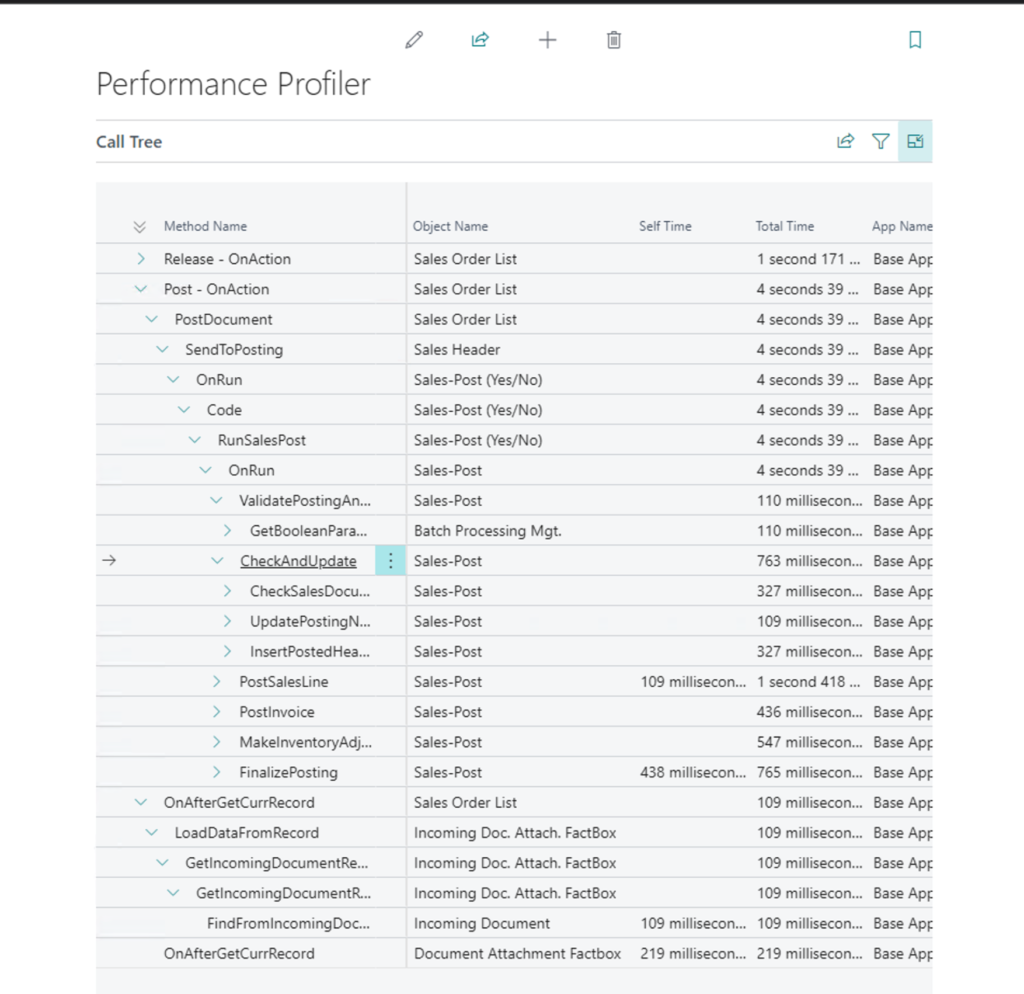 The profiler will display the call tree and the amount of time consumed by each app and process within the call tree. The profiler data is precious information when determining where there may be a performance issue.
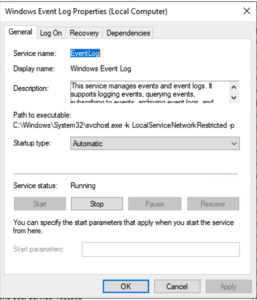 Repeatability is important! Right alongside that, in my opinion, is efficiency. A recent task required me to set up several Application Services setups, including setting the log on account and password. I could have done all of these manually; however, I found it more efficient and repeatable to set up a script to handle the setup.
 purpose was to review events and troubleshoot issues when processing these events. The files are saved in a folder structure divided and grouped by Year, Month, and Event Type. The grouping is helpful for troubleshooting and finding specific transactions, but with several types of events and, at times, a decent volume, there can be a decent amount of disk space wasted; realistically, there isn’t a need to keep diagnostic logs forever. The data does become stale after a certain period.